Accounting System Feed
If a transaction has been entered into your accounting system, assigned a job and is given to an active contact in Buildlogic, the transaction will flow back into the AS feed to be set up in Buildlogic. By the same token, transactions that are set up and linked in both systems then unlinked/deleted from Buildlogic will fall back into the AS feed until the item is removed from the AS and a sync has run to update the system. Changes to certain transactions will also come into the AS feed when the system can't apply them directly, such as an existing linked transaction that has had additional lines added on the accounting system side.
Filters & Controls
- Accounting System Selector - Choose which accounting system you'd like to search
- Job Selector – Displays transactions for the selected job
- Show Unlinked Only – Filters the list to show only transactions without links, uncheck this to find existing transactions.
- Days to Back Date – Controls how far back transactions are displayed, keep this number lower for quicker loading if you have a lot of data
- Refresh – Reloads the data based on selected filters

Transaction Grid – Field Definitions
- Date – The transaction date recorded in the accounting system.
- AS Number – The corresponding accounting system transaction number
- Contact - Buildlogic contact transaction is being assigned to
- Supplier Number – Supplier reference number from the accounting system
- Memo – Any memo data from accounting system
- Jobs – Associated Buildlogic job/s
- Suggested Action – The system will suggest a PO or subcontract, if a subcontract exists for that contact it will choose that subcontract automatically. A user can double click into this field to change the suggested action if it is incorrect.
- Linked BL Ref – If the transaction is already linked to an existing BL transaction it will be listed in this field
- PO/Contract - If the system sees an existing transaction for the contact it may try to assign it automatically to that transaction, you can change which transaction by clicking in the field.

Transaction Grid – Data Entry
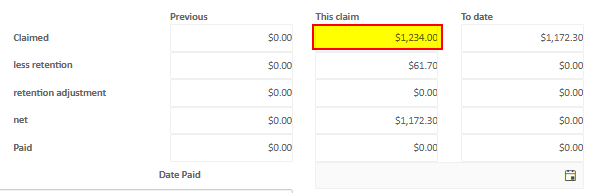
When processing a transaction through the AS feed you'll notice on the right hand side there are value figures, the 'this claim' amount is the total that needs to be applied to the subcontract claim. (Purchases enter the total automatically)
Look at the total of the 'this claim' amount and apply it to the corresponding subcontract lines, it can be applied to one or many different lines as required. Enter any necessary coding if you're keying in a purchase order and then hit the save and create claim or save and create purchase to create the transaction in Buildlogic and link to the AS.
If you want detailed instructions on the AS feed please see:
When to Use This Screen
- During month-end reconciliation
- When transactions appear in the accounting system but not in Buildlogic
- To identify missing purchase or job links
- To validate integration between systems
Tips
- Regularly review unlinked transactions to avoid discrepancies
- Ensure supplier references match between systems
- Use date filters to narrow down reconciliation periods
- Investigate “invalid value” indicators promptly
- Run BL accounting system sync's to update AS changes
Was this article helpful?
That’s Great!
Thank you for your feedback
Sorry! We couldn't be helpful
Thank you for your feedback
Feedback sent
We appreciate your effort and will try to fix the article