Purchase Orders & Contracts Register
The Purchase Orders & Contracts Register allows users to view, create, edit, manage, and process all purchase orders (POs) and subcontracts (SCs) for a job. It includes filtering, bulk actions, integration with accounting systems, and document handling.
Filters & Search
The top panel provides filtering to control what records are displayed:
- Job – Select a job using dropdown lookup
- Show – Predefined date ranges (e.g. Month, Quarter, Year)
- Start / End Dates – Manual date filtering (this date is remembered when you hit the green refresh button to apply it)
- Type – Filter by PO or SC if you want to see one or the other only
- Refresh – Load results & save filter settings
Selecting a job and filters reloads the register with matching purchase records.

Grid Overview
The purchases/contracts grid displays all records a user has access to and supports:
- Row selection (single or multi-select)
- Sorting and filtering - click the column header to sort by column
- Inline actions (buttons per row)
- Double-click to open record
Each row represents a Purchase Order (PO) or Subcontract (SC).

Opening & Editing Records
- Double-click a row or hit the edit button to open the record
- System routes based on type:
- PO → Purchase Edit screen
- SC → Contract Edit screen
- CTRL + click opens in a new browser tab if you want to keep the list open as well
Toolbar Actions
Create & Edit
- New PO or Contract
- Edit selected record
- Preview purchase details - used to check detail without opening the transaction

Delete & Maintenance
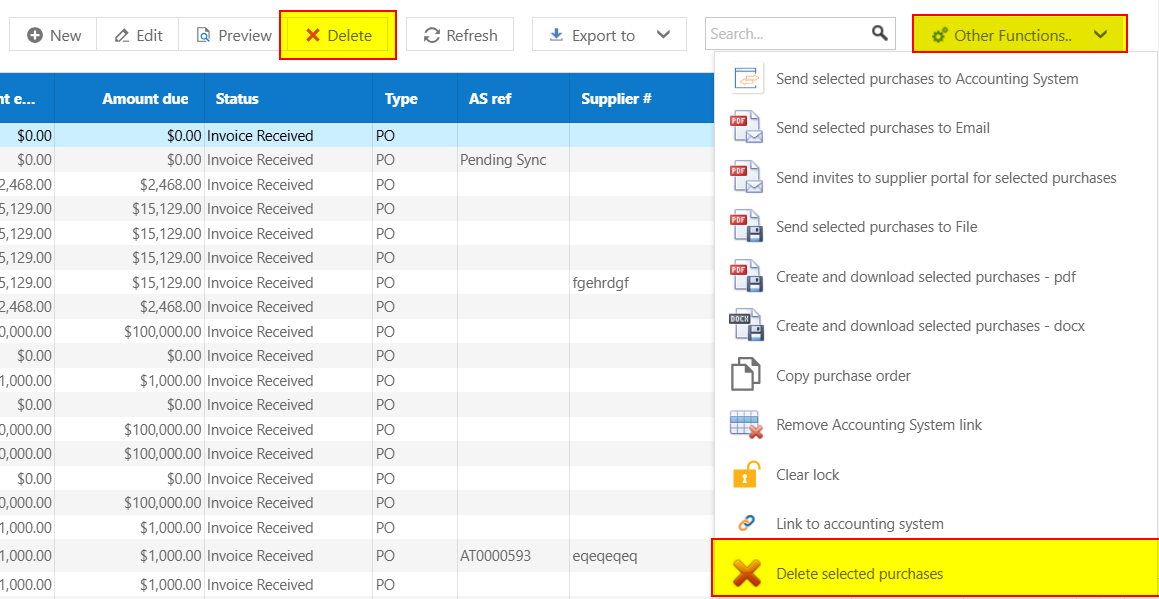
- Delete single purchase - Delete button
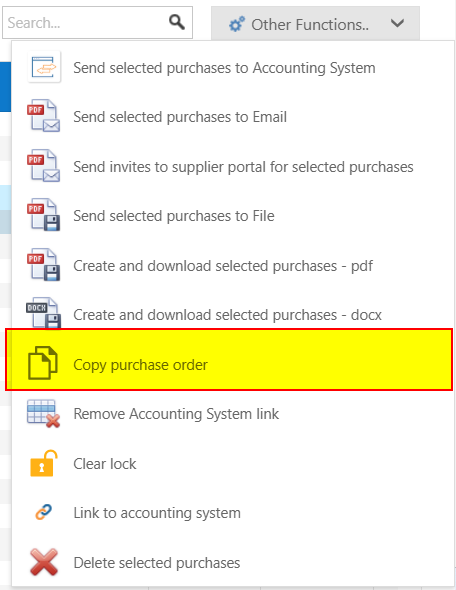
- Delete multiple selected purchases - other functions delete selected
- System validation checks before deletion (system checks if an item has been claimed before deleting)
Export & Documents
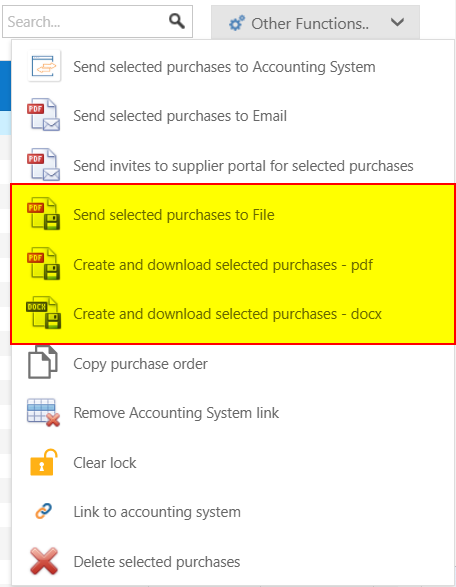
- Download selected POs as PDF
- Download selected POs as DOCX
- Send documents to file storage (saves copy of the selected purchases in your file system: OneDrive, SharePoint, etc)
Communication
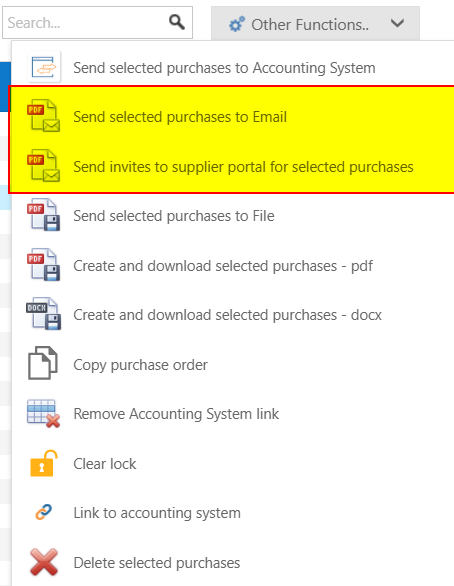
- Email selected purchase orders - bulk email all selected purchases to the associated supplier email
- Send supplier portal invitations - send subbie portal invites to associated suppliers, gives supplier a link to enter their claims (separate module not automatically enabled)
Accounting Integration
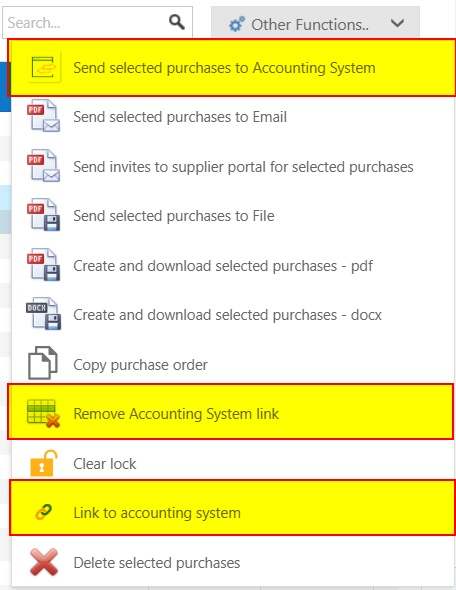
- Send POs to accounting system - bulk send selected PO's to the accounting system
- Link PO to accounting system transaction - link a purchase order to an existing accounting system transaction
- Remove accounting system link - remove link to accounting system
Other
- Copy Purchase Order - carbon copy of selected purchase order
File & Document Handling
- Download attachments from purchase records (Inv?) - click the PDF icon on the associated line to download any attachments
- Preview purchase documents before sending
Documents are processed and downloaded directly through the browser.

Accounting System Integration
- Send purchase orders directly to accounting system from the other functions menu
- Link existing transactions
- Remove or update links as required
A modal popup allows selection of accounting system transactions.
Bulk Processing
- Select multiple rows
- Apply bulk actions such as:
- Download
- Delete
- Send to accounting
Batch processing improves efficiency when managing large datasets.
Tips
- Use date filters to reduce clutter in large jobs
- Use bulk actions to save time
- Check accounting links before deletion
- Preview documents before sending to suppliers
- Use search to narrow your list
``
Was this article helpful?
That’s Great!
Thank you for your feedback
Sorry! We couldn't be helpful
Thank you for your feedback
Feedback sent
We appreciate your effort and will try to fix the article