Purchase / Contract Detail Tabs
The Purchase screen is organised into multiple tabs, each providing access to financial, operational, and audit information related to the individual purchase.
The available tabs include: Details, Payments, Delivery Details, Notes, Certificates, and Activity Log.
Details Tab
The Details tab contains the core information for the purchase or contract.
- Supplier information - select a supplier or edit an existing supplier by hitting the pencil icon, use the green refresh button to update the list.
- Order number - PO number can be changed prior to linking to the accounting system.
- Status - Order status used as a draft status type, invoice received is a confirmed setting, some lists will not include orders.
- Layout - Service is default layout, if you are using item orders with inventory in your accounting system there is an item selection in this list also, generally this will always be a service invoice.
- Category - this is a custom list used as a tool for differentiating between orders.
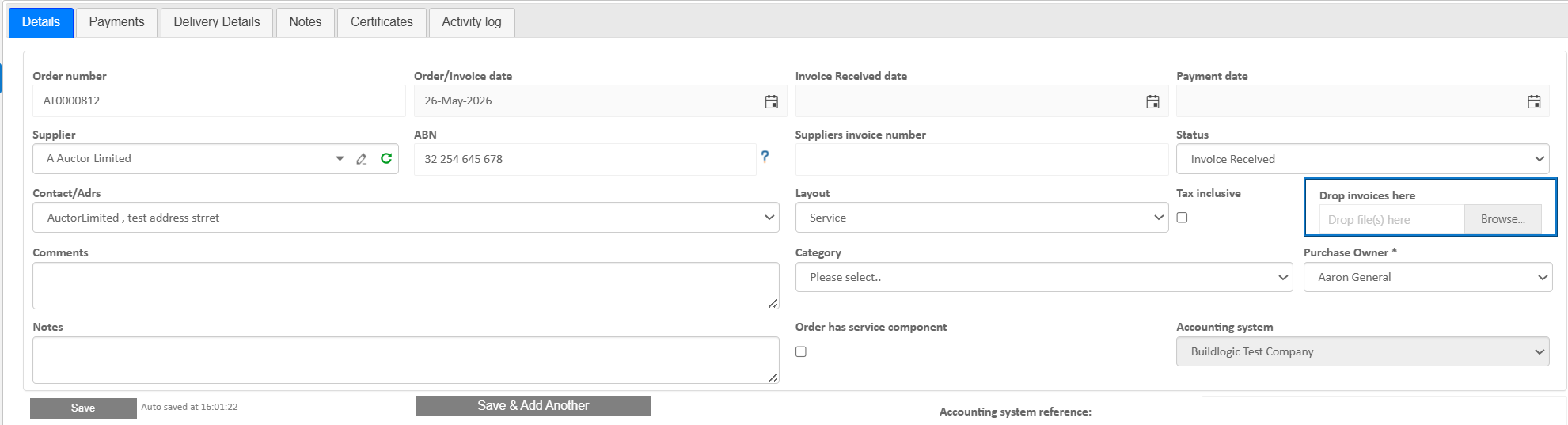
Table Options
- Copy Down - Similar to other places this button allows a user to copy the selected cell to the cells below
- New - add a new line to your purchase order
- Refresh - refresh the table
- Export - export the purchase detail table to various outputs
- Search - search the PO table, works for many columns, use spaces between words to search multiple columns
- Other Functions
- Detail and Header line setting - set selected lines to heading or detail lines
- Insert above selected - helpful for inserting lines above selected rows for purchases that have many detail rows
- Delete selected rows - used to delete more than 1 row at a time, the delete button handles one row instead.
- Create email from selected - create an email with a table listing the selected rows, good for supplier quotes.
- Paste from Clipboard - paste clipboard into purchase table
| Trade | Cost code | Reference | Description | Qty | Units | Rate | Amount | Tax code | Header level 1 or 2 |
| 1 | LA-LABOURS | 10100-Project Manager | Header | 0 | item | $0.00 | $0.00 | GST (10%) | 1 |
| 1 | LA-LABOURS | 10100-Project Manager | teast | 1 | item | $100.00 | $100.00 | GST (10%) | 0 |
- Priced Items - Used to insert items from your price list into a purchase order
- Add from recently used - Add lines that have been used before, a list of past items entered into purchase orders.
Table
- Job association - bottom table, a purchase can have one or many jobs on the same purchase order, choose the job in the job column for each line.
- Description and scope
- Financial values and totals

Payments Tab
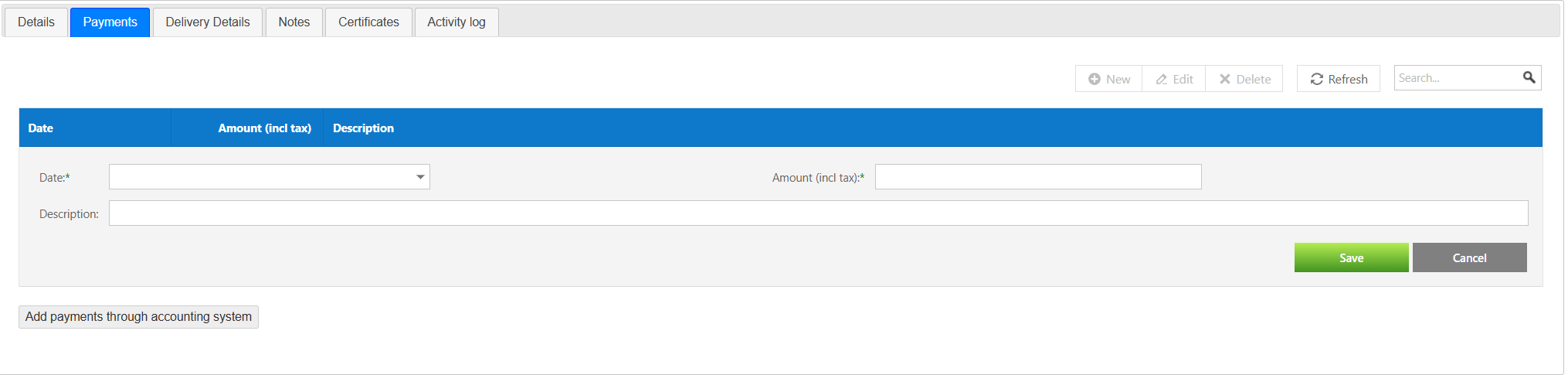
The Payments tab tracks all payment activity associated with the purchase or contract.
- Payment dates
- Outstanding balances
This tab provides visibility into financial commitments and cash flow for the individual purchase order, this tab is updated automatically via information provided by the accounting system.
If your purchase order is not linked to the accounting system, a user can manually add payment details in this tab.
Delivery Details Tab
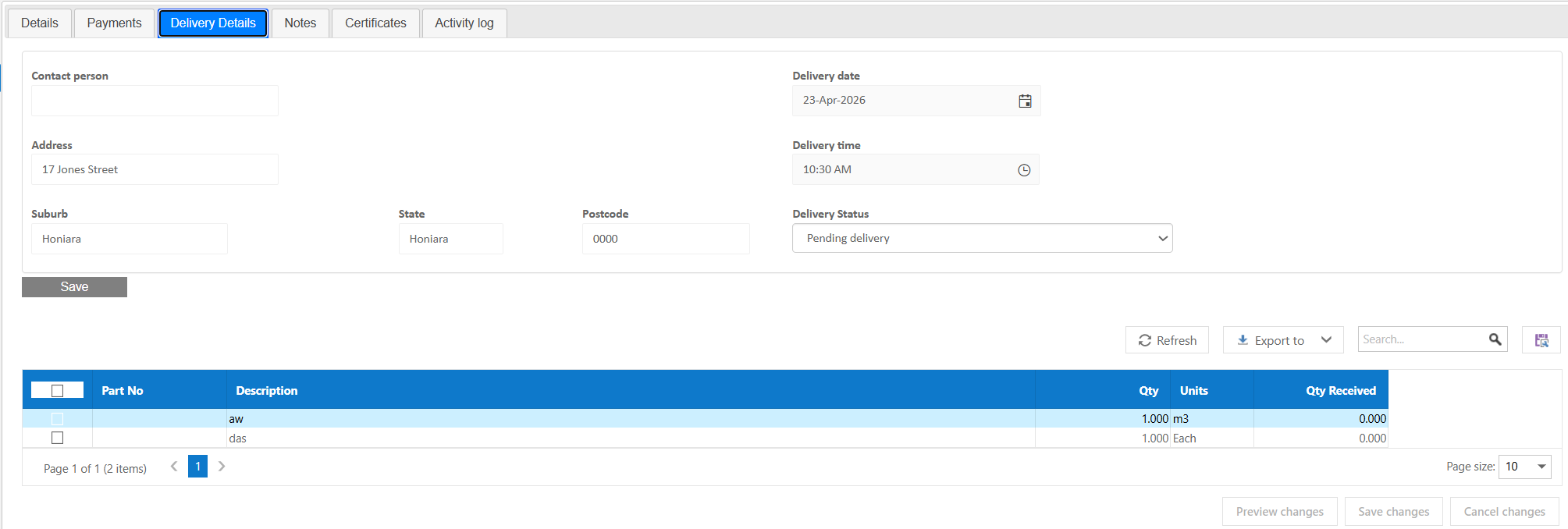
The Delivery Details tab captures logistical information for materials or services.
- Delivery addresses
- Delivery instructions
- Contact details
- Required delivery dates
Useful for coordinating site deliveries and supplier communication, keeps track of delivery history for each line, can be managed from mobile application.
Notes Tab
The Notes tab allows users to add internal or external notes.
- General comments
- Instructions or clarifications
- Communication history
- Attachments
Helps maintain context and documentation for the purchase, this is where drag/drop attachments are stored, if you need to edit or remove an attachment check the notes tab.

Certificates Tab
The Certificates tab stores compliance and documentation records for the associated supplier
- Insurance certificates
- Compliance documents
- Expiry tracking
Ensures suppliers meet regulatory and insurance requirements.

Activity Log Tab
The Activity Log tab provides an audit trail.
- Record creation and updates
- User actions
- Status changes
- Timestamps for activity

Tips
- Use the Details tab for setup and core edits
- Keep Delivery Details accurate for site coordination
- Use Notes to document key decisions
- Review Activity Log for troubleshooting or audits
``
Was this article helpful?
That’s Great!
Thank you for your feedback
Sorry! We couldn't be helpful
Thank you for your feedback
Feedback sent
We appreciate your effort and will try to fix the article