Job Trade Detail (Budget Line Items)
The Job Trade Detail page provides a detailed breakdown of all line items within a selected trade, including contracts, purchase orders, variations, and cost allocations. This is where users manage the financial components that make up each trade budget.
Navigation & Access
- Open a job
- Select Job Trades
- Double-click a trade or click Open
This opens the detailed budget view for that trade.
Trade Selection Panel
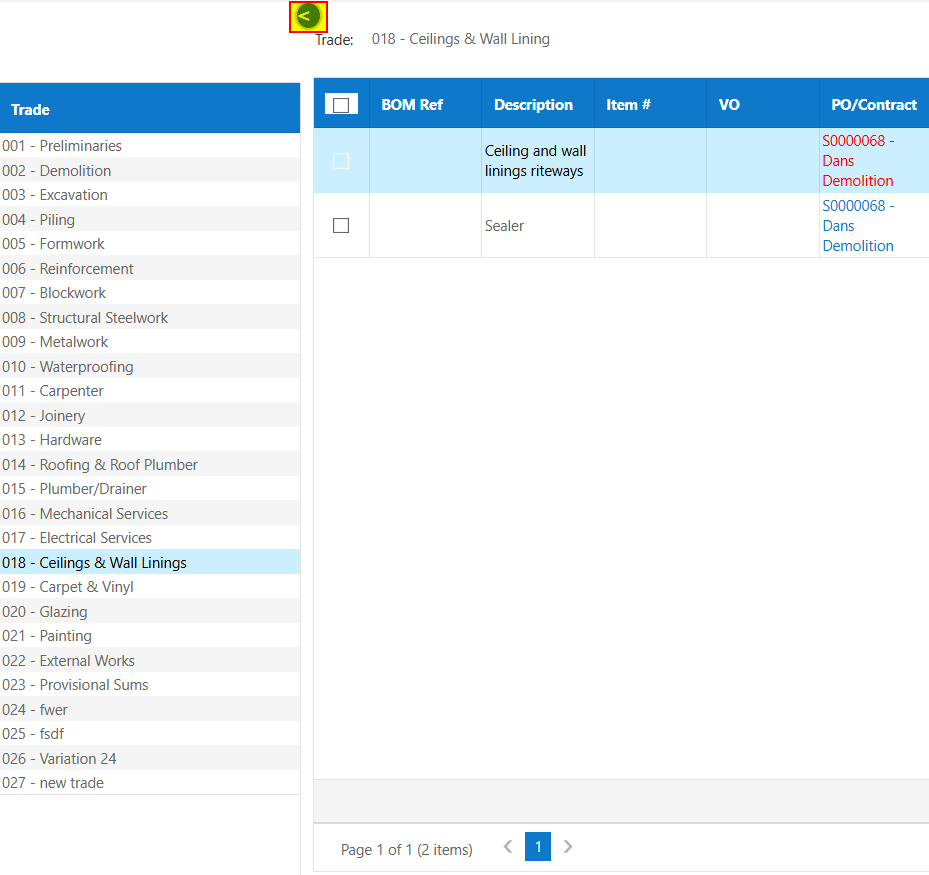
A selection panel on the left allows users to quickly navigate between trades, without having to leave the detail view.
Selecting a trade loads its associated budget line items.
This trade list can be hidden with the left facing arrow if a user requires more space or is using a smaller screen.
Grid Overview
The main grid displays detailed line items contributing to the trade’s budget:
| Column | Description |
|---|---|
| BOM Ref | Bill of Materials reference if applicable |
| Description | Item description |
| Item # | Item identifier if using priced items |
| VO | Associated head contract variation |
| PO/Contract | Linked purchase order or subcontract |
| Cost Code | Cost classification |
| Reference | Reference code |
| Quantity / Units | Measured quantity and unit type |
| Rate | Unit rate |
| Extension | Total value (Qty × Rate) |
| Tax Code | Applicable tax (e.g. GST) |

Toolbar & Actions
- Copy Down – Used to copy data from cell above into cells below (to next header line)
- Refresh – Reload data
- Export – Export grid data
- Priced Items – access and insert items from price list
- Other Functions – Advanced actions

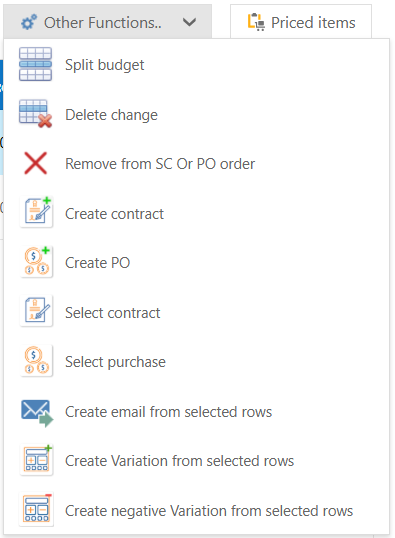
Available other functions include:
- Create contract - select a line and create a contract from that detail row
- Create purchase order (PO) - select a line and create a purchase order from that detail row
- Select existing contract or PO - assign a line to an existing subcontract or purchase order
- Split budget lines - split one line in the budget into multiple lines
- Delete change - remove budget split (if a user has not already assigned the split lines to transactions)
- Remove line from subcontract or purchase - remove the link to the associated contract/purchase
- Create variations (positive or negative) - create a head contract variation using the selected lines (positive or negative)
- Create email from selected rows - Create a quick email with the selected lines in a table (good for supplier quotes)
Variations & Contracts
Each line item can be linked to:
- Subcontracts (SC)
- Purchase Orders (PO)
- Variations (VO references)
The link itself doesn't affect anything outside of this budget page showing you which transaction it is linked to, it's mainly for convenience and a quick reference to see perhaps what may still need to be sent to a supplier.

Editing & Change Management
- Edit values directly in the grid
- Preview changes before saving
- Save or cancel changes
- Validation errors are displayed for invalid inputs
Pagination & Display
- Multi-page grid (e.g. Page 1 of X)
- Adjustable page sizes (10–500 rows)
- Large datasets supported
Supporting Tools
Additional features include:
- Email creation with attachments directly from selected rows
- File selection and document linking
- Supplier and pricing data lookup
Tips
- Link line items to contracts or POs for accurate tracking
- Validate quantities and rates before saving
- Use bulk actions to improve efficiency
- Regularly review negative values or reversals
Was this article helpful?
That’s Great!
Thank you for your feedback
Sorry! We couldn't be helpful
Thank you for your feedback
Feedback sent
We appreciate your effort and will try to fix the article