Job Trade List (Budget View)
The Job Trade List page displays all trades (or cost codes / reference codes depending on view) for a job, along with their associated budgets, variations, and financial performance. It is the a workspace for viewing trade-level budgets and costing.
Navigation & Access
- Job → Open Job → Job Trades
This page opens within a job and shows all associated trades and their budgets.
Grid Overview
The Job Trade grid displays financial and operational data per trade.
| Column | Description |
|---|---|
| Trade ID | Unique identifier for the trade |
| Description | Trade or work description |
| Original Budget | Initial allocated budget for the associated trade |
| Variations & PS Overspends | Approved variations and overspending |
| Provisional Sums | Sum of provisional items assigned to the trade |
| Total Adjusted Budget | Final adjusted trade budget |
| Is Provisional Trade | Indicates if trade is provisional |
| Active for Timesheets | If a trade is active for timesheets, timesheet users will see this trade in their selection menu when entering times. |
A totals row is displayed at the bottom summarising all financial values for each column.

View Options
The grid view can be switched using:
- View By: Trade
- View By: Cost Code
- View By: Reference Code
Changing the view reorganises how the data is grouped and displayed, can be helpful if you want to check the job overview by coding rather than trade.

Toolbar Actions
- Open – Opens selected trade budget
- Edit – Modify trade details such as name or whether it is active for timesheets (Trade ID is system generated)
- New – Add a new trade (trades cannot be deleted, keep this in mind when adding new trades)
- Refresh – Reload data

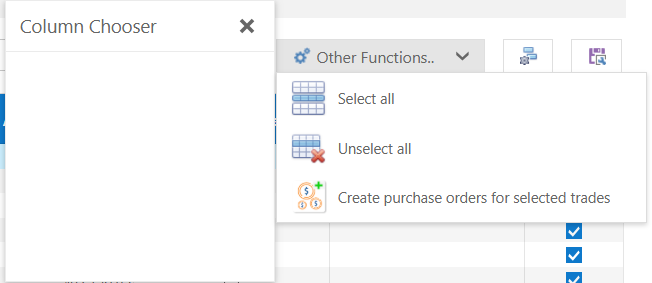
Additional functions include:
- Select All / Unselect All trades (Used to quickly enable/disable all trades for "active for timesheets")
- Create purchase orders from selected trades (when supplier is selected on trade detail lines, use this to quickly create purchase orders for all line items in the trade)
- Show Column Chooser (show/hide columns - Drag a column into/from the chooser)
- Save Layout (save your column width/page size selections)
Export Options
- Export to PDF
- Export to DOCX
- Export to RTF
- Export to XLSX

Key Actions & Behaviour
- Double-click a row to open the trade budget
- Select multiple trades for bulk actions
- Trades can be activated/deactivated for timesheets
- Purchase orders can be generated for selected trades (If suppliers are set for each detail row)
- Grid refreshes dynamically based on selected view
Pagination & Display
- Supports paging (e.g. Page 1 of X)
- Adjustable page size (10, 20, 30, 50, 100, 200, All)
- Scrollable grid for large datasets
Tips
- Use “View By” to analyse budgets from different perspectives
- Regularly monitor adjusted budgets for cost overruns
- Use bulk selection to speed up purchase order creation
- Keep trades active only when required for timesheets
- Save your preferred layout for efficiency
Was this article helpful?
That’s Great!
Thank you for your feedback
Sorry! We couldn't be helpful
Thank you for your feedback
Feedback sent
We appreciate your effort and will try to fix the article