Job Edit Page – Full Guide
The Job Edit page is the central hub for managing all details related to a specific job. It allows users to view, update, and control job configuration, financials, contacts, and system integrations.
Navigation & Access
This page is accessed via:
- Jobs → List → Select Job → Edit
Once opened, the page displays the selected job including its name, description, and client details.
Navigation Menu
The navigation panel on the left provides quick access to major job modules:
These shortcuts allow you to move quickly between job-related functions without leaving the job context.
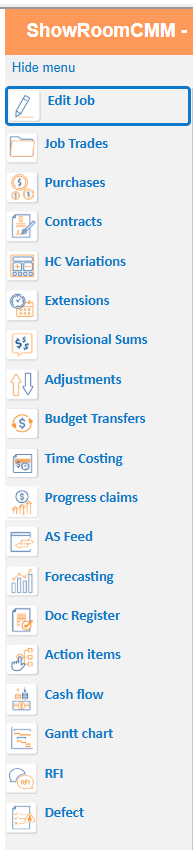
Job Tabs Overview
The Job Edit page is divided into multiple tabs, each containing different aspects of the job. When you first create a job it's recommended to go through each tab and set up the job as required.
- Details – General job information
- Original Contract – Initial contract values with and without GST, original job markup, default variation markup settings.
- Adjusted Contract – Updated contract values including changes (Variations, provisional sums, adjustments)
- Job Dates – Key scheduling dates including projected completion dates after extensions and defect liability periods
Users can also set up Job Date Types if they need to specify some sort of custom entry - Security – Retention and financial controls
- Contacts – Job-related contacts, such as a site contact or any job specific contact who doesn't need a contact card.
- User Access – Permissions and accessibility, choose which users can see/access a particular job.
- Charge Rates – Billing rates configuration when you need to set specific rates for individual jobs, these will override the contact settings for charge rate.
- Accounting System Integration – Link your job to the accounting system for sending/receiving job related data
- Ref Codes – This allows a user to enable/disable reference codes on the specific job rather than having to change them system wide, helpful if you want a smaller or more targeted list for an individual job.
- Notes – Job notes and comments, attachments, etc.
- Site Activity – Used to keep track of site activity when mobile users are checking into site via QR code
- Map – Location mapping
- Activity Log – Audit trail of some actions

Key Functions
- Edit and maintain core job data
- Update contract values and financial settings
- Manage users and permissions
- Link jobs to accounting systems
- Add contacts, notes, and reference data
- Track job activity and history
All job-related data is centralised here, making it the primary control point for job setup and maintenance.
Changing Jobs
Use the Change Job option to quickly switch between jobs without returning to the job list.
Tips
- Keep job details updated to ensure accurate reporting
- Review contract tabs regularly for financial accuracy
- Use Activity Log to track changes and troubleshoot issues
- Set correct user access to maintain data security
- Leverage shortcuts to reduce navigation time
Was this article helpful?
That’s Great!
Thank you for your feedback
Sorry! We couldn't be helpful
Thank you for your feedback
Feedback sent
We appreciate your effort and will try to fix the article