Budget Transfer Edit Screen
The Budget Transfer Edit screen allows users to create, review, and manage individual budget transfer records within a job.
The screen uses a tabbed layout to organise transfer details, supporting information, and audit tracking for efficient workflow management.
Tabs Overview
The following tabs are available:
- Details
- Notes
- Activity Log
Details Tab
The Details tab is the primary working area for the transfer.
- Transfer Number - System generated number cannot be modified, this number will show in your budget as a reference in the incoming and outgoing trades with a link back to the transfer.
- Created Date - defaults to todays date can be modified if required
- Client Number - Client reference number if required
- Specification - Site Instruction - Scope of Work - Fields for entering any details about the transfer
- Status - Author or approved, used for tracking transfers tat may be awaiting some sort of approval.
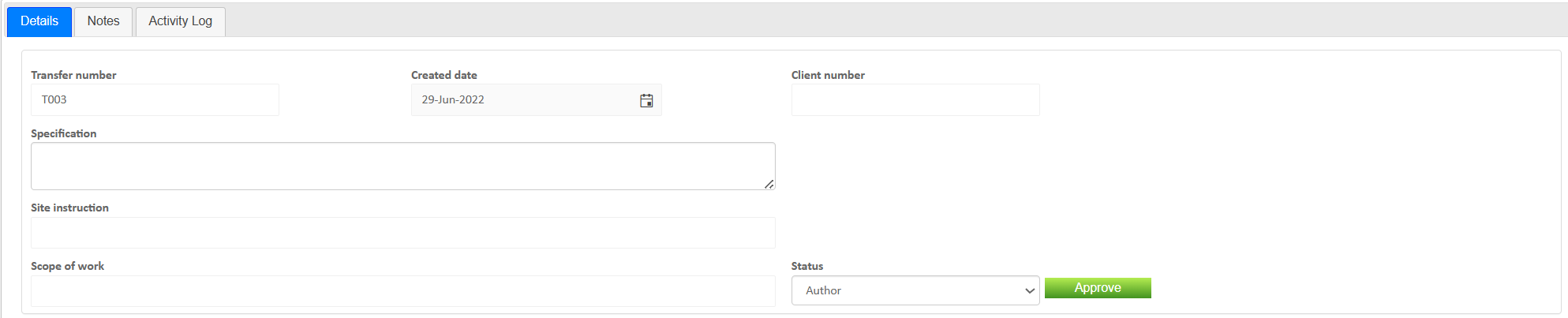
This tab defines how budget is redistributed across the project. The table at the bottom of the page is where users enter data about the transfer itself, users can either enter this manually by using the +New button or they can grab lines directly from their job trades and use the other functions menu to 'move item'. Picking lines up from the budget is usually easier as you avoid the manual data entry.
Each budget transfer should equal $0 with a positive line for where the item will be moved and a negative line associated with where the line is being moved from. See below example: (If you pick from the job trades the system will automatically create a positive and negative line)

Notes Tab
The Notes tab provides additional context for the transfer.
- Internal comments
- Justifications for budget movement
- Communication history
- Attachments
Activity Log Tab
The Activity Log tab records all changes and actions.
- User actions and edits
- Status changes and approvals
- Timestamps for all updates
This provides an audit trail for tracking
Tips
- Ensure transfers balance correctly between source and destination
- Clearly document the reason for each transfer
- Verify submitted and approved values
- Use Notes to support financial decisions
- Review Activity Log for audit and compliance
Was this article helpful?
That’s Great!
Thank you for your feedback
Sorry! We couldn't be helpful
Thank you for your feedback
Feedback sent
We appreciate your effort and will try to fix the article