Job Forecasting Screen
The Job Forecasting screen is used to track, manage, and project the financial performance of a job over its lifecycle.
It combines budget, actual costs, commitments, and projected costs to provide real-time visibility of profitability and financial position.
It combines budget, actual costs, commitments, and projected costs to provide real-time visibility of profitability and financial position.
Forecast Controls
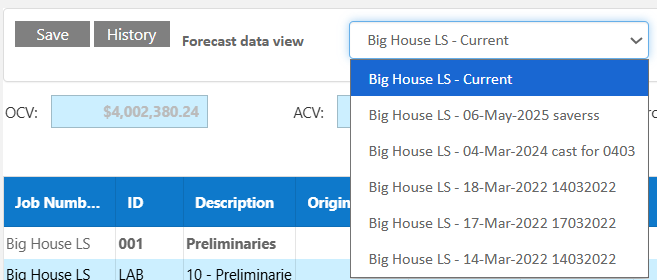
At the top of the forecast there are some filter settings that allow users to run the forecast on one or many jobs at a time, a user is also able to view the forecast in "report" mode, which allows a user to export the forecast directly to excel. From this menu a user can also select past saved forecasts to check historical data. (Forecast needs to be saved as at a date for this to have options).
- Forecast Data View – Select current or historical forecast versions
- Save History – Stores snapshots of forecast data
- Select Jobs – Filter forecast across multiple jobs
- Refresh – Reloads all forecast data
- Export – Export forecast data (Excel, PDF, etc.)
- Search - Search the forecast for any known data
- Other Functions - Reset all cost to complete figures/set cost to complete to 0 on all rows
To enable these features an admin user will need to navigate to core module and give the user the function to use these.
These controls allow users to manage and compare forecast versions, forecast across multiple jobs or export the forecast to excel.

Cost Summary Metrics
- OCV (Original Contract Value) – The initial contract amount for the job.
- ACV (Adjusted Contract Value) – Contract value after approved variations and adjustments.
- Original Gross Profit (GP) – Expected profit based on original budget.
- Adjusted GP after Approved Changes – Profit after incorporating approved changes (Variations, Adjustments, Transfer and Provisional Sum Lettings )
- Projected GP after Changes & Costs – Forecasted final profit including all actual and projected costs.
These high-level metrics provide a quick financial snapshot of job performance.

Forecast Grid – Field Definitions
The forecast grid displays financial values for each trade and cost code.
- Job Number – Identifier of the job associated with the forecast row.
- ID – Internal trade or cost code reference.
- Description – Description of the trade, category, or cost item.
- Original Budget – Initial estimated cost for the item.
- Budget Changes – Adjustments to the original budget (variations, transfers, provisional sums).
- Adjusted Budget – Total budget after all changes are applied.
- Actual – Costs already incurred and recorded.
- Inv Rec (Invoices Received) – Total value of invoices processed for the item.
- Commitments – Costs committed through purchase orders or contracts not yet invoiced.
- Retentions – Amounts withheld as retention.
- Balance – Remaining budget after actual costs and commitments.
- Cost To Complete – Estimated remaining cost to complete the work.
- Gain/Loss – Difference between budget and forecasted final cost.
- Forecasted Final Cost – Total expected cost at completion (Actual + Cost to Complete).
- Comment – Notes explaining forecast assumptions or adjustments.
These fields collectively define the financial status and forecast of each cost element. Double click a field for a breakdown of costs.

Cost to Complete (CTC) Breakdown
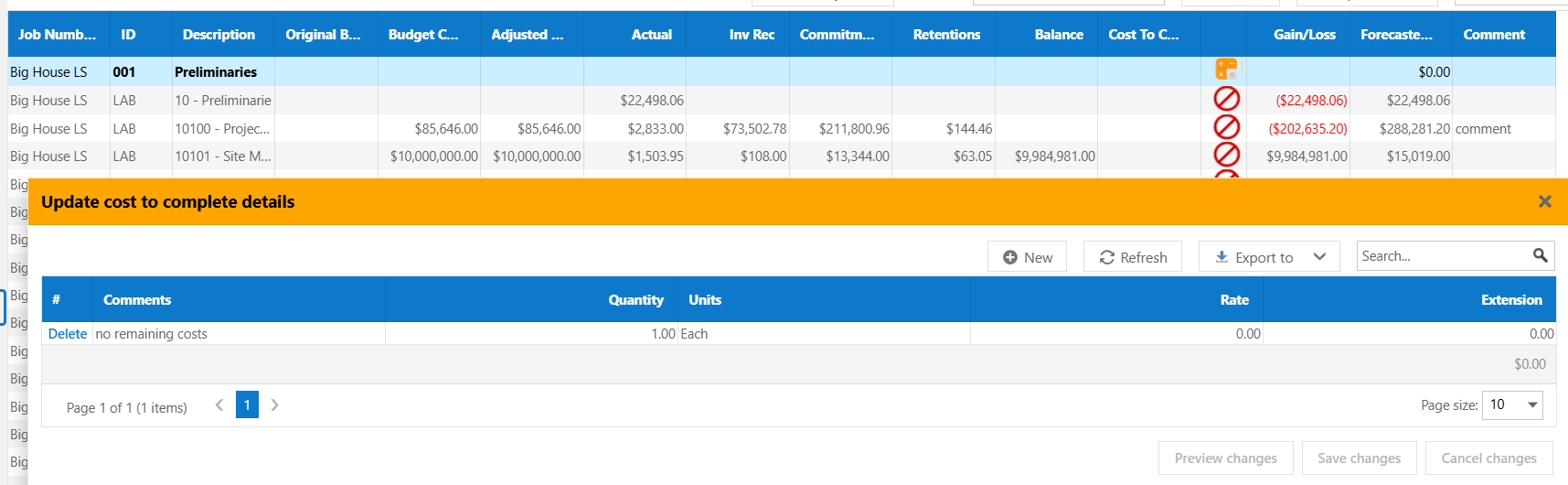
- Allows detailed breakdown of remaining costs including comments and remaining amounts
- Includes quantities, rates, and extensions
- Supports granular forecasting at line-item level
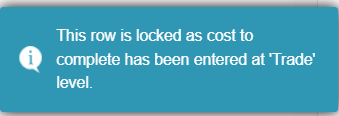
This feature improves accuracy of forecast projections. Hit the green cross to enter a cost to complete against the line, CTC breakdowns can only be entered at one level per section, if you enter a CTC breakdown at the trade level for example it will lock the other levels. You'll notice a red icon when you can't enter a CTC, if you click the red circle the system will explain why it is locked.
Forecast History
- Saves historical snapshots of forecast data
- Includes date and description of each save
- Supports comparison of financial performance over time
- Reports exist for users to track movements
Historical tracking allows users to analyse trends and decision impacts.
Tips
- Update Cost to Complete regularly to maintain accurate forecasts
- Use comments to justify changes and assumptions
- Review Gain/Loss to identify problem areas early
- Save forecast snapshots at key project milestones
- Compare historical forecasts to track financial trends
- Check user security settings to enable reset in bulk
Was this article helpful?
That’s Great!
Thank you for your feedback
Sorry! We couldn't be helpful
Thank you for your feedback
Feedback sent
We appreciate your effort and will try to fix the article