Variation Edit Screen
Available tabs include: Details, Notes, and Activity Log.
The Variation Edit screen sits within the HC Variations module and is accessed by hitting edit on an existing variation or creating a new variation.
Details Tab
- Variation number - System generated number, cannot be edited. If you want to keep the numbering schedule but need to delete a variation, reject it instead or delete the lines inside the variation so you can use the same number again later. I.e. if you're up to variation V006 and you delete V003, the next variation you create will be V007 and you'll be missing V003 forever.
- Created Date - Defaults to todays date, can be modified if required.
- Client Number - Any reference number you'd like to enter, can be left blank if not applicable.
- Specification - Specification use as you see fit, can be inserted into templates.
- Site Instruction - Site instruction use as you see fit, can be inserted into templates.
- Scope of Work - Scope of work use as you see fit, can be inserted into templates.
Approval Process (If applicable)
If you have approval process set up for HC Variations you will note a green button indicating where the variation is up to in the approval process and who it is assigned to. This will change based on the approval process you set up so can vary from site to site. Operation same as other approval processes.

Details Table
This is where the variation gets its quantities, amounts and job coding.
Manual Insert
Users can enter details into this table manually by:
- Hitting the +new button
- Making use of the "Add from recently used" menu which displays the a list of previously entered lines
- Using existing priced items to insert detail via price list
- Copy/pasting lines into the variation via the clipboard - format below. (same format as exporting the variation to excel from the "export to:" menu.
| Trade | Part No | Cost code | Reference | SC | Description | Qty | Units | Rate | Extension | Markup % | Gross | Tax code |
| 001-Preliminaries | SUB-SUBCONTRACT | 10100-Project Manager | test | 1.000 | Each | $4,500.00 | $4,500.00 | 10.00 | $4,950.00 | GST (10%) |
Create Via Job Budget
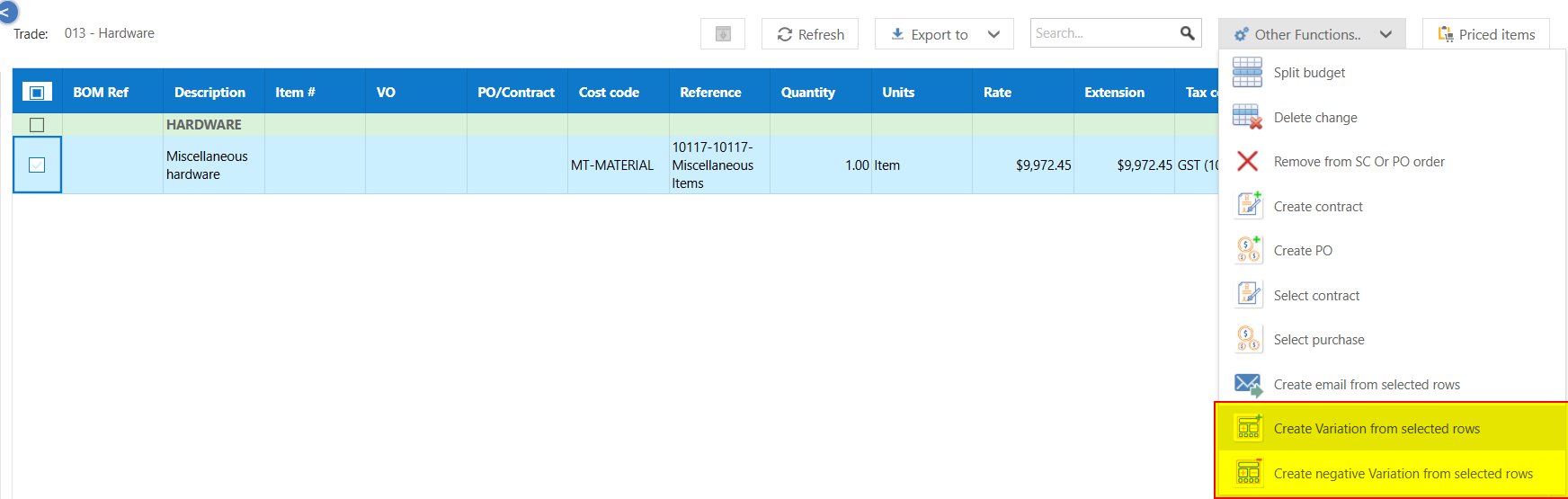
Users can create variations from the jobs budget to save data entry, open a trade in your jobs budget, select any lines you want to create a variation from and from the other functions menu either create a positive or negative variation as needed.
Notes Tab
- Internal comments
- Clarifications or instructions
- Communication history
- Attachments
Activity Log Tab
- Changes made to the variation
- User actions
- Status updates
- Timestamps of all edits
Tips
- Complete all Details fields accurately before submitting
- To reset amount submitted change all rows back to waiting (?) status
- Use Notes to track key decisions and communications
- Keep variation status up to date to reflect approval progress
- Cross-check values against the Variations Register totals
Was this article helpful?
That’s Great!
Thank you for your feedback
Sorry! We couldn't be helpful
Thank you for your feedback
Feedback sent
We appreciate your effort and will try to fix the article