Progress Claim Edit Screen
The Progress Claim Edit screen is used to create, review, and manage individual progress claims within a job.
This screen provides a tabbed interface for entering claim details, recording notes, and tracking all activity associated with each claim.
Tabs Overview
The following tabs are available:
- Details
- Notes
- Activity Log
The system remembers the last selected tab using session storage, improving user workflow.
Details Tab
The Details tab is the primary working area for creating and managing the progress claim.
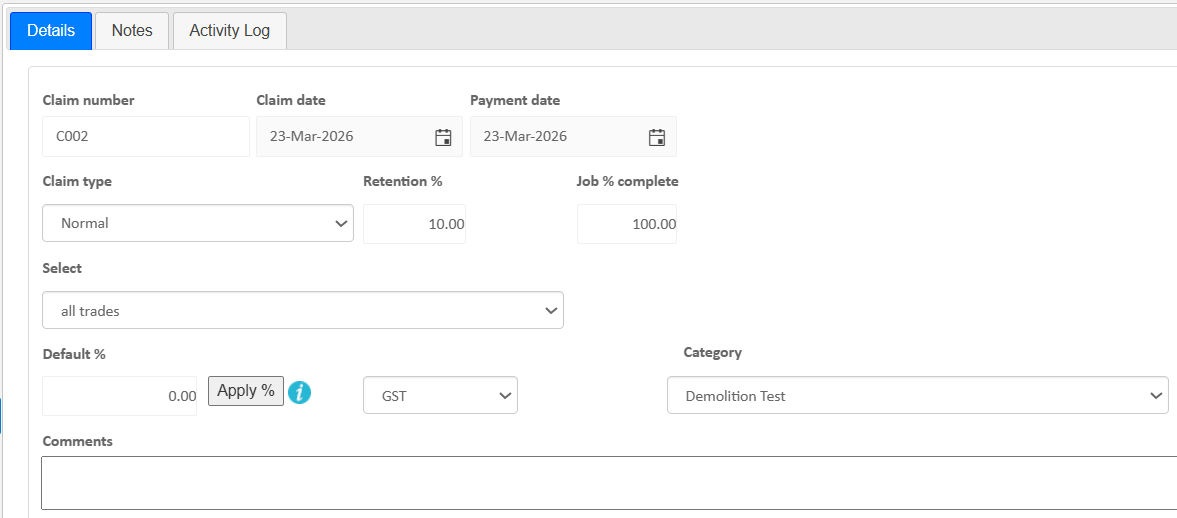
- Claim Number – Unique system-generated identifier for the progress claim.
- Claim Date – The date the claim is issued; defaults to today’s date but can be modified.
- Claim Type – Defines the type of progress claim (e.g. normal, practical completion, final completion).
- Retention % - Display figure showing the default retention percentage amount for the job
- Select - This section will help with data entry, use this selection to choose which parts of the budget to display, there are many options to help find lines you wish to claim, such as choosing 'variations' will only display variation lines or you can choose an individual trade to display. Used to help find lines in large amounts of data.
- Default % - Use this field to enter a percentage and hit 'apply %' to apply the amount to all lines currently displayed
This number can't reduce claimed amounts only increase, so if you've claimed too much and want to start over delete your claim and start again. - Category - System list for differentiating between claims if needed
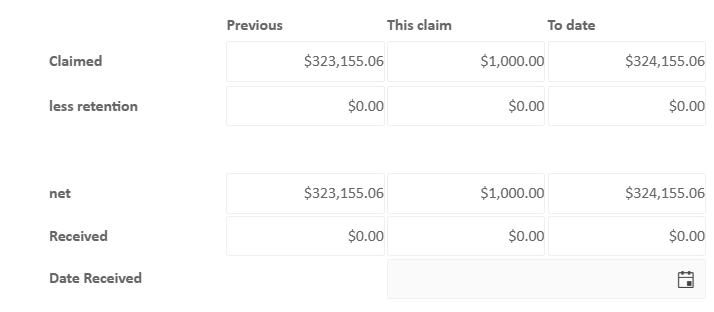
- Claim Amounts – Total value being claimed for the period before retention or adjustments
- Retention Amount – Portion of the claim withheld as retention according to contract terms
- To Date Amount – Value approved by the client, which may differ from the claimed amount
- Amount Received – Payment received from the client against the claim, if a claim is not linked to the accounting system users can enter an amount paid manually in the 'this claim' received field
- Date Received – The date payment was received
Refresh From Budget
When a progress claim is created it takes a snapshot of the current situation, if new items or changes are made in the background, the claim will not update until the user hits the 'refresh from budget' option.

Notes Tab
The Notes tab allows users to add context and communication history.
- Internal comments
- Client communication notes
- Supporting explanations for claim values
- Attachments
Notes help justify claim amounts and provide transparency.
Activity Log Tab
The Activity Log tab provides a detailed audit trail.
- Record of user actions
- Changes to claim values
- Submission and approval history
- Timestamps for all updates
This ensures compliance and traceability of all claim changes.
Tips
- Refresh from budget to bring in new transactions
- Verify claim values before saving and sending
- Use comments field or notes tab to document variations or client discussions
- Review Activity Log for audit and approval tracking
- Check submitted vs approved values carefully
- Keep records updated to maintain accurate cash flow tracking
``
Was this article helpful?
That’s Great!
Thank you for your feedback
Sorry! We couldn't be helpful
Thank you for your feedback
Feedback sent
We appreciate your effort and will try to fix the article