RFI Edit Screen
It provides a tabbed interface to manage RFI details, attachments, and activity history.
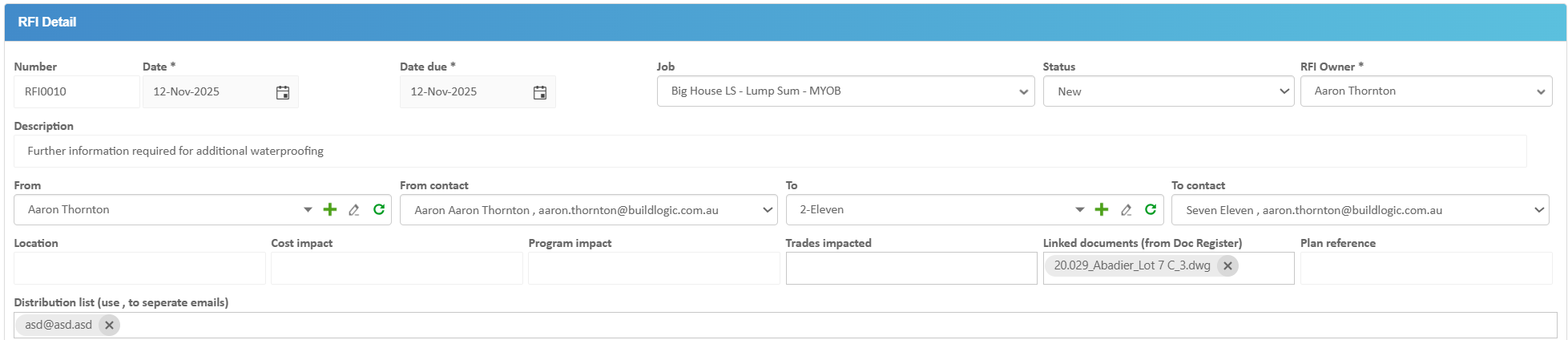
Details Tab – Field Definitions
- RFI Number – Unique identifier assigned to the RFI
- Date – Date the RFI was created.
- Due Date – Required response date.
- Job - Related job selection
- Status – Current state (e.g. New, Open, Response Requested, Closed).
- RFI Owner - Owner responsible for RFI
- Description – Summary of the request or issue requiring clarification.
- From – Originator of the RFI.
- To – Assigned recipient responsible for responding.
- Location/Cost/Program/Trade Impact - Data entry field if required
- Linked Documents - A user can select any existing document register documents from the jobs document register to attach
- Distribution List - Any additional users who should receive the RFI
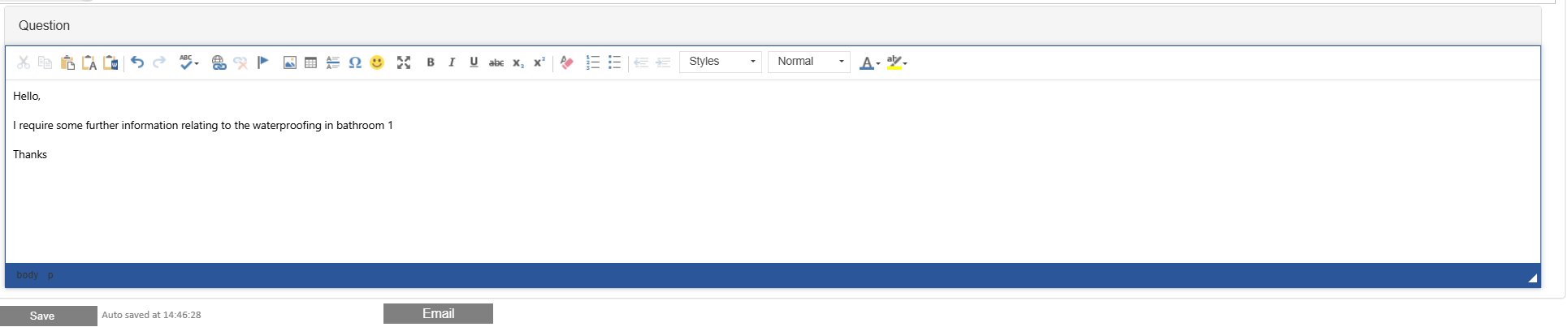
Question
Under the initial detail there is a question field, this is where the Buildlogic user should enter the content of the RFI,
There are a range of text editing controls the user can apply as required, when the question data is completely filled the user can hit the "Email" button to send the RFI out to all recipients set above
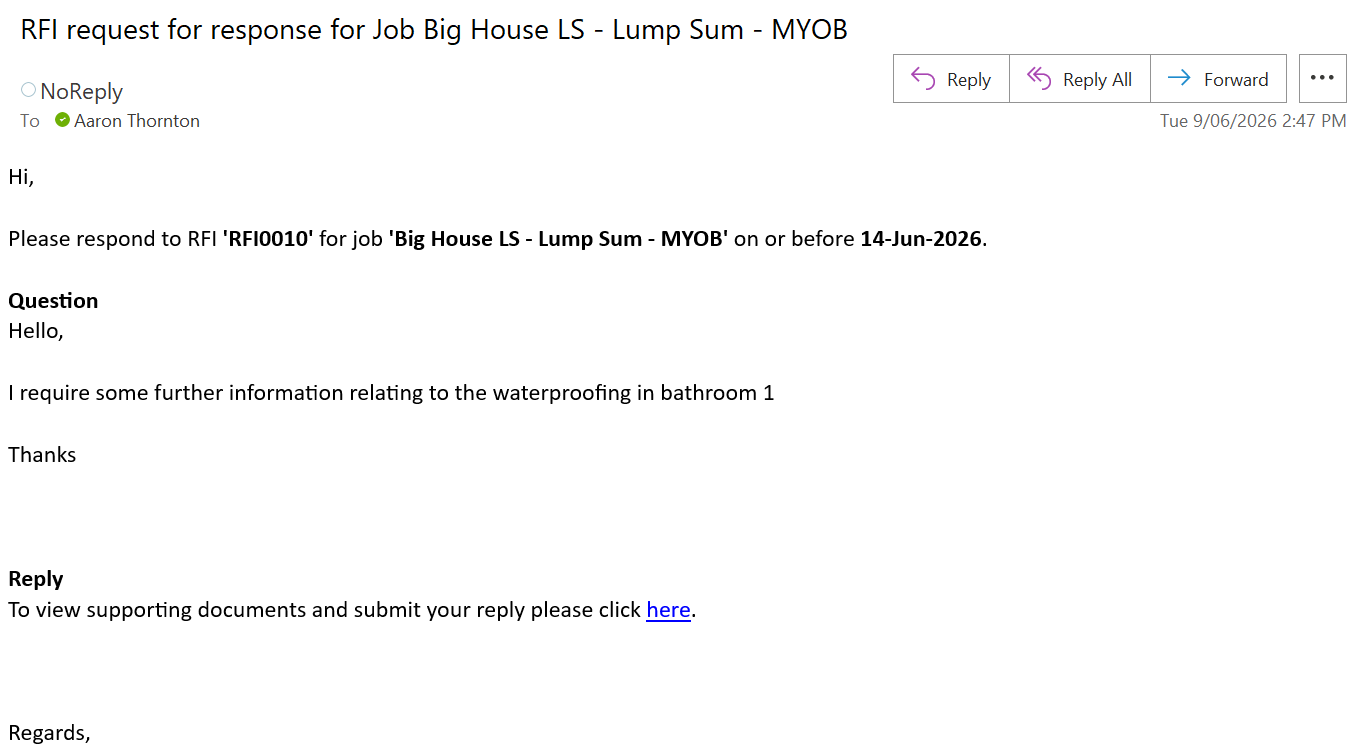
When the Buildlogic user sends the email the recipient will receive a link to click and submit a response with any attachments
Example:
______________________________________________________________________________________________________________
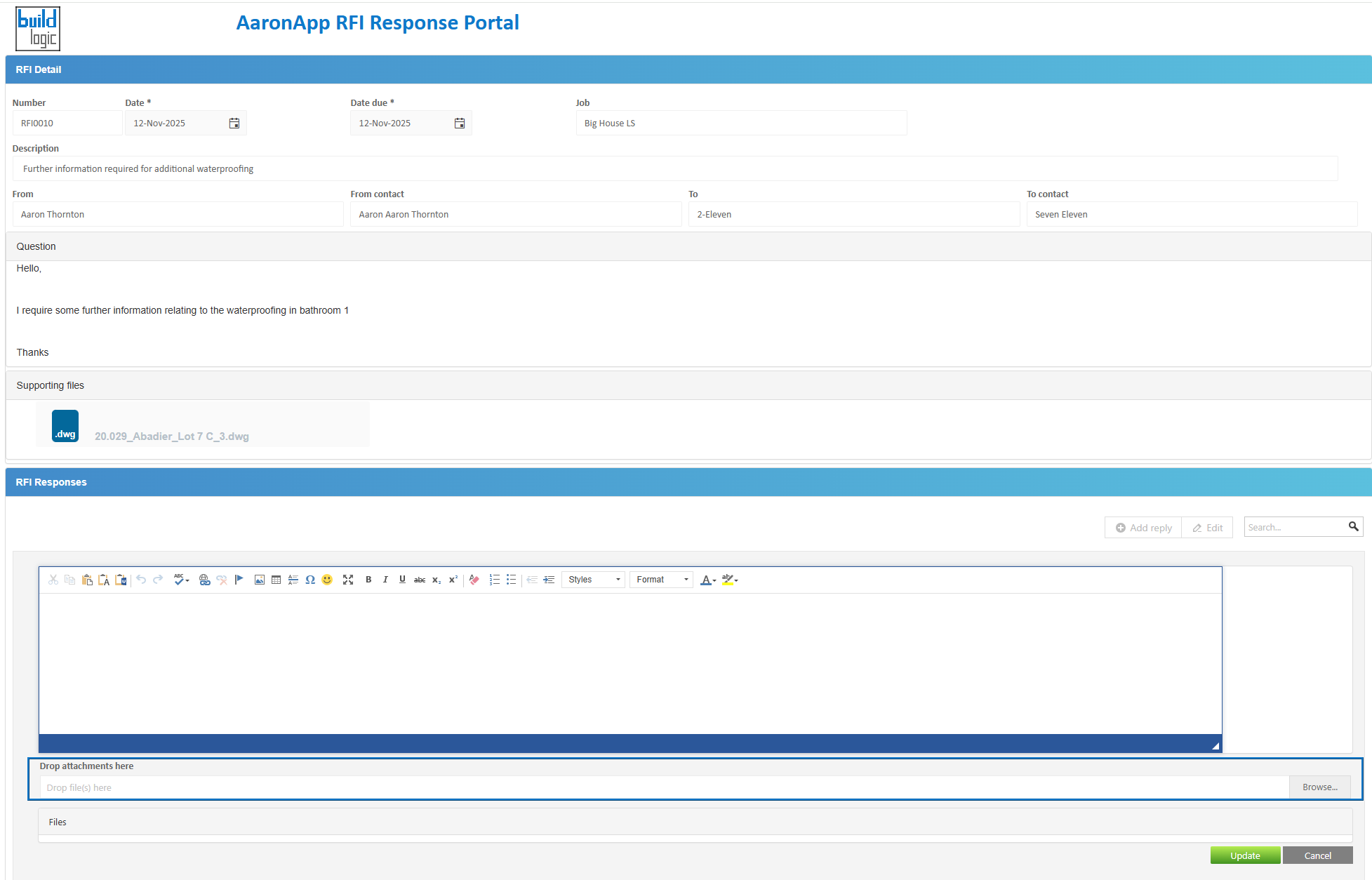
The user who clicks the link on the email will be taken to an RFI screen where they can add a reply
When a reply is submitted through this portal it will land in the RFI section for the job for the Buildlogic user to review,
The RFI owner will receive a notification to alert them to the response
Example:
Responses
When the RFI recipient responds using the above portal, the Buildlogic user is notified and the response lands inside the RFI itself where all responses will be grouped for historical ease of access.
When a Buildlogic user is satisfied with the response they can mark an answer as the 'accepted answer' otherwise they can go back and request further detail and await another response.

Activity Log Tab
- Tracks status changes
- Logs user actions and edits
- Records responses and workflow steps
- Provides timestamps for all updates
RFI Workflow Context
- Create RFI
- Assign recipient
- Review and respond
- Approve response
- Close RFI
Tips
- Provide clear descriptions to avoid delays
- Attach relevant documents early
- Set realistic due dates
- Regularly update status
- Use Activity Log for audit tracking
Was this article helpful?
That’s Great!
Thank you for your feedback
Sorry! We couldn't be helpful
Thank you for your feedback
Feedback sent
We appreciate your effort and will try to fix the article