Approval Processes
Buildlogic supports configurable approval workflows for subcontractor claims, supplier invoices, head contract variations, and provisional sums. This article explains the available approval levels and how they work.
Approval Types Overview
For subcontractor claims and supplier invoices, there are three approval levels:
| Level | Description |
|---|---|
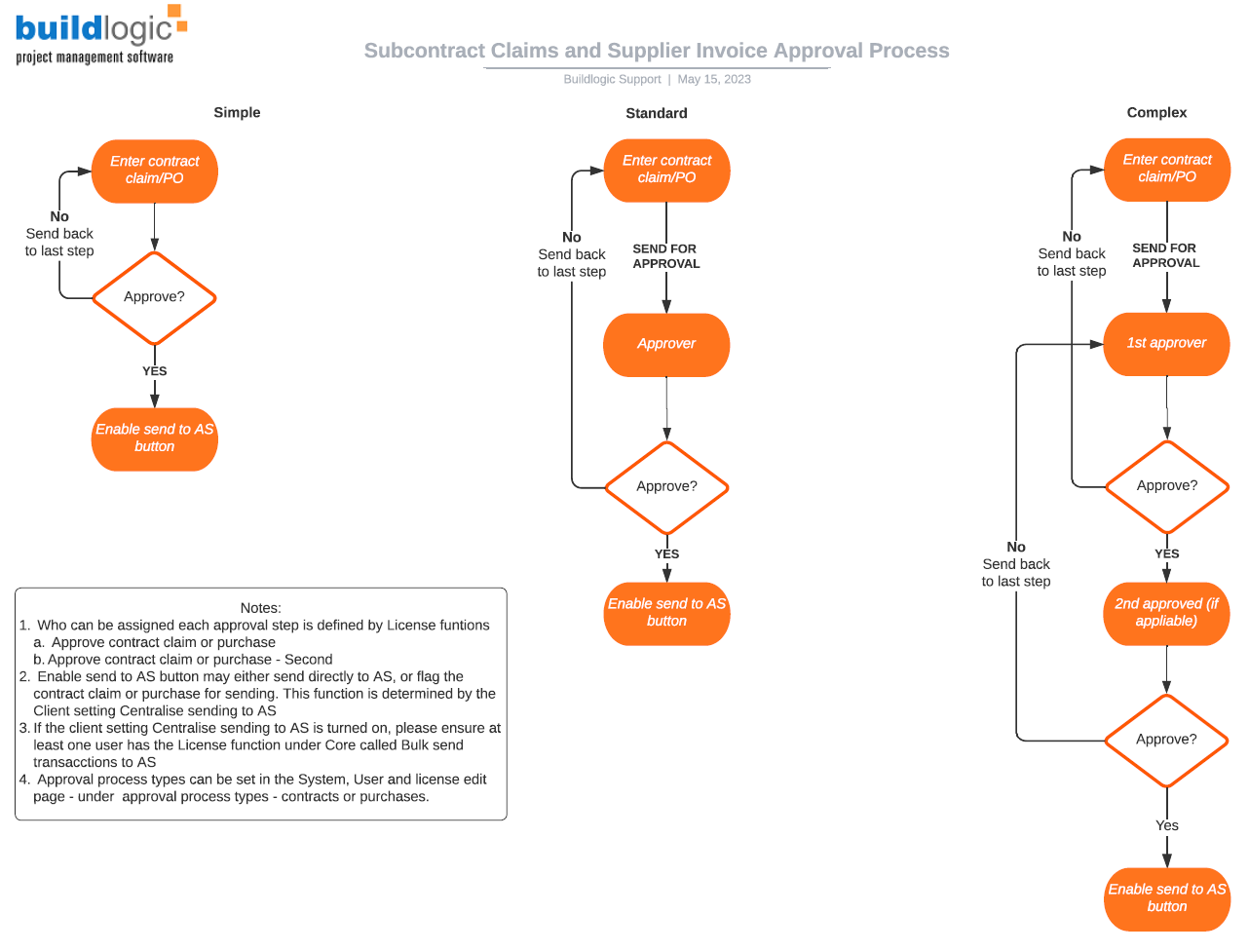
| Simple | The user creates, approves, and sends the claim directly to the accounting system. No secondary approver required. This is the default when users are first set up. |
| Standard | The user creates the claim and assigns it to an internal approver. The approver reviews and approves before it is sent to the accounting system. |
| Complex | Two levels of approval required. The claim passes from the creator to a 1st approver, then to a 2nd approver before it can be sent to the accounting system. |
The diagram below shows the full workflow across all three levels:
For Head Contract Variations and Provisional Sums, approval is simpler — a user is either granted permission to approve or they are not. There are no tiered levels for these modules.
Admin Setup — Configuring User Approval Levels
A Buildlogic Admin user needs to set the approval level in a users profile (System > User & License > Edit > Approval Process Types) Setting one user affects the whole site. This applies separately to the Contracts & Contract Variations module and the Purchase Orders module.
Users can be configured as:
- Full access (create and approve)
- First approver only
- Second approver only
The screenshot below shows an example of the approval settings for Subcontractor Progress Claims. The same options apply to the Purchase Order module.

Note: Simple is the default approval type when a user is first created.
Simple Approval
The user creates a subcontractor progress claim or supplier invoice, approves it themselves, and sends it directly to the accounting system. No other users are involved.

Once the claim is processed and approved, the Send to Accounting System button will appear — click it to finalise.
Standard Approval
The user creates the claim and sends it to an internal approver for review before it can be sent to the accounting system.

Once the claim is processed, click Send for Approval. A popup will appear allowing you to select the approver and add a comment.

Once assigned, the grid updates to show approval options. The approver can either approve the claim or send it back to the author for changes, restarting the process.

A notification will appear in the approver's To Do list on the Dashboard. They can click the link to go directly to the claim and approve it. The Send to Accounting System button only becomes available after this approval is completed.
Complex Approval
The claim passes through two levels of approval before being sent to the accounting system. The creator assigns to a 1st Approver, who reviews and then assigns to a 2nd Approver with comments.

Once assigned to a 2nd approver, the grid updates accordingly:

As with Standard approval, a notification appears in the 2nd approver's To Do list on the Dashboard. The Send to Accounting System button only appears after this final approval is completed.
Tips
- Approval levels are set per user and per module — a user can have Simple approval for Purchase Orders but Complex for Subcontractor Claims.
- The Send to Accounting System button will not appear until all required approval steps are complete.
- Approvers are notified via their Approvals widget in the Dashboard or the approvals list section — no manual follow-up needed.
Was this article helpful?
That’s Great!
Thank you for your feedback
Sorry! We couldn't be helpful
Thank you for your feedback
Feedback sent
We appreciate your effort and will try to fix the article