Report Widget Builder
We've added a new Report Widget Builder that allows users to create their own report widgets, based on datasets specific to their site.
This is a powerful tool that gives users the flexibility to build reports from scratch and save them off, eventually these reporting widgets will be able to be presented on a users dashboard; the user can build reports from scratch rather than being limited to the standard list we provide.
The widget builder is located under the Reports menu for all admin users.
How it works:
The builder walks you through four simple steps:
1. Choose a dataset - select from a range of datasets specific to your site, such as Job Summary, Cost to Complete, Job Budget Detail, Progress Claims, Purchase Details and Time Cost vs Budget.

2. Widget type - choose how you want the data displayed.

3. Configure - select the columns you want to display, set the column order, and apply any grouping, sorting or filters you need. This gives you full control over exactly what data shows and how it's laid out.
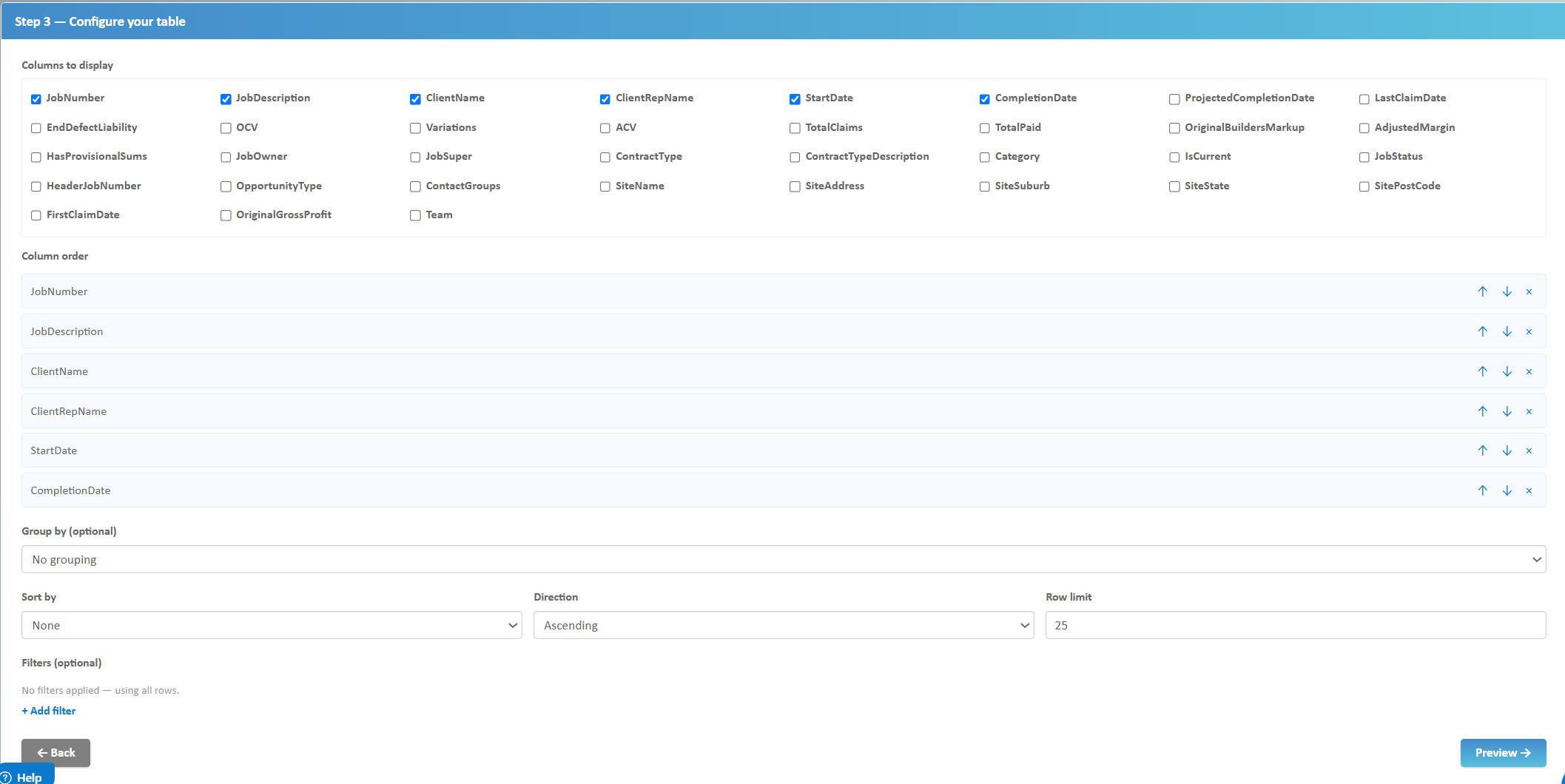
4. Preview & save - preview your widget with live data before saving it. You can also export the results to Excel, CSV or JSON directly from here.
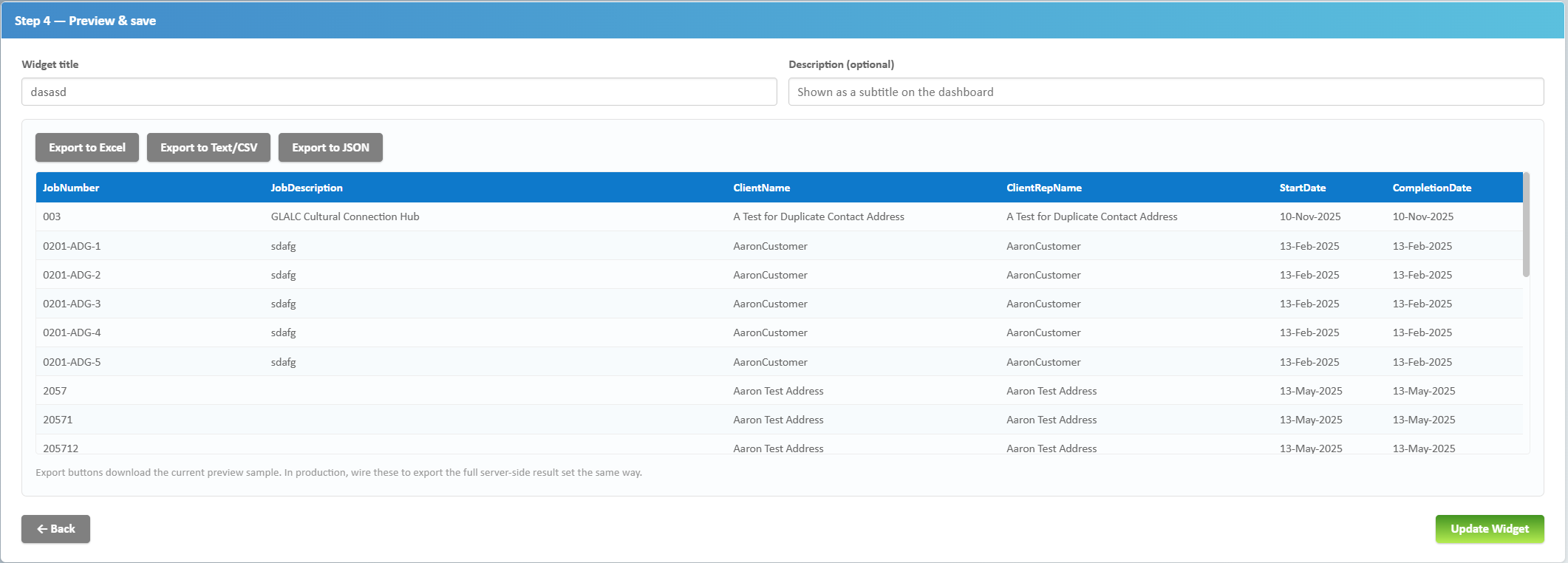
Once saved, your widgets are stored in the My Report Widgets section, where you can Edit, Delete or export them at any time.
We want your feedback!
This is a powerful tool we'll be building on over the coming releases. If there are other views or datasets you'd like to be able to report on, or if there is a direction you'd like to see this tool head in, please let us know (support@buildlogic.com.au) - it will help shape where we take it next.
Supplier Sub Types
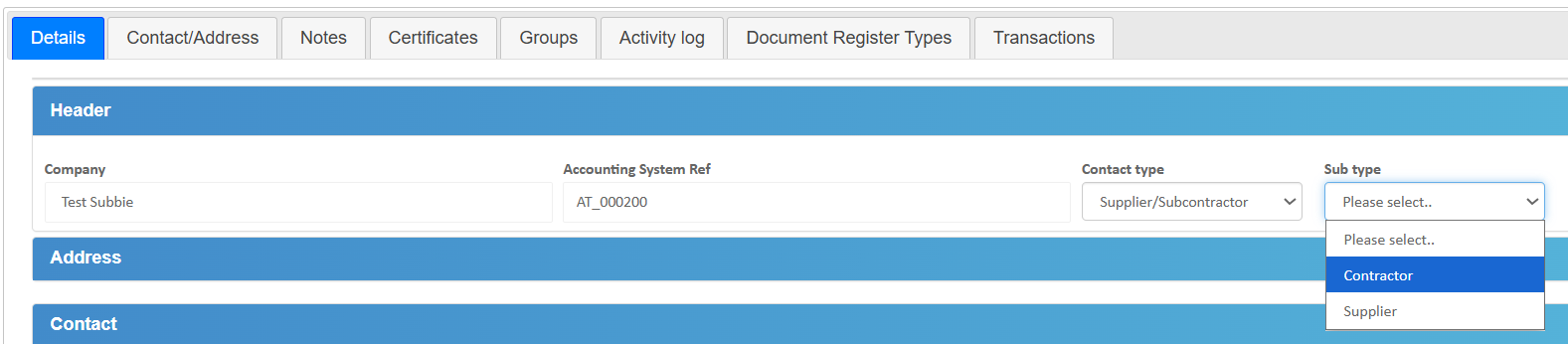
We've added supplier sub types, allowing users to differentiate between supply only suppliers and subcontractor suppliers.
This will help ensure subbie portal requests can skip supply only suppliers, and will allow users to more easily filter between the different supplier types across the system.
This field is optional - if the distinction isn't relevant to your site, it can simply be left blank.
Forecast By Reference Code
Users can now forecast on the reference code view.
Prior to this change, the reference code view was locked as a read only view. Now users can enter a cost to complete breakdown against reference codes and run their forecast by reference code, if they prefer to manage the job that way.
This will be handy for sites who might have the same reference code appearing across many different trades, as the forecast can now be managed from the reference code angle rather than trade by trade.

Was this article helpful?
That’s Great!
Thank you for your feedback
Sorry! We couldn't be helpful
Thank you for your feedback
Feedback sent
We appreciate your effort and will try to fix the article