This release introduces a guided wizard for creating new contacts, the ability to allocate a single budget line across multiple purchase orders and subcontracts, a second claim portal email day each month, and speed and save improvements to the Report Editor.
New Contact Wizard
Creating a new contact used to mean jumping between the Details, Accounting System, Certificates and Charge Rates tabs, saving each one separately, and only finding out something was missing after a save failed. We've added a new New Contact wizard that walks you through contact creation one step at a time, in the right order.
The steps are shown down the left hand side, and you can click back to any step at any time without losing what you've already entered. The wizard only shows the steps that apply to the contact you're creating, and will tell you when a step has been skipped and why (for example, "Skipped - not a supplier").
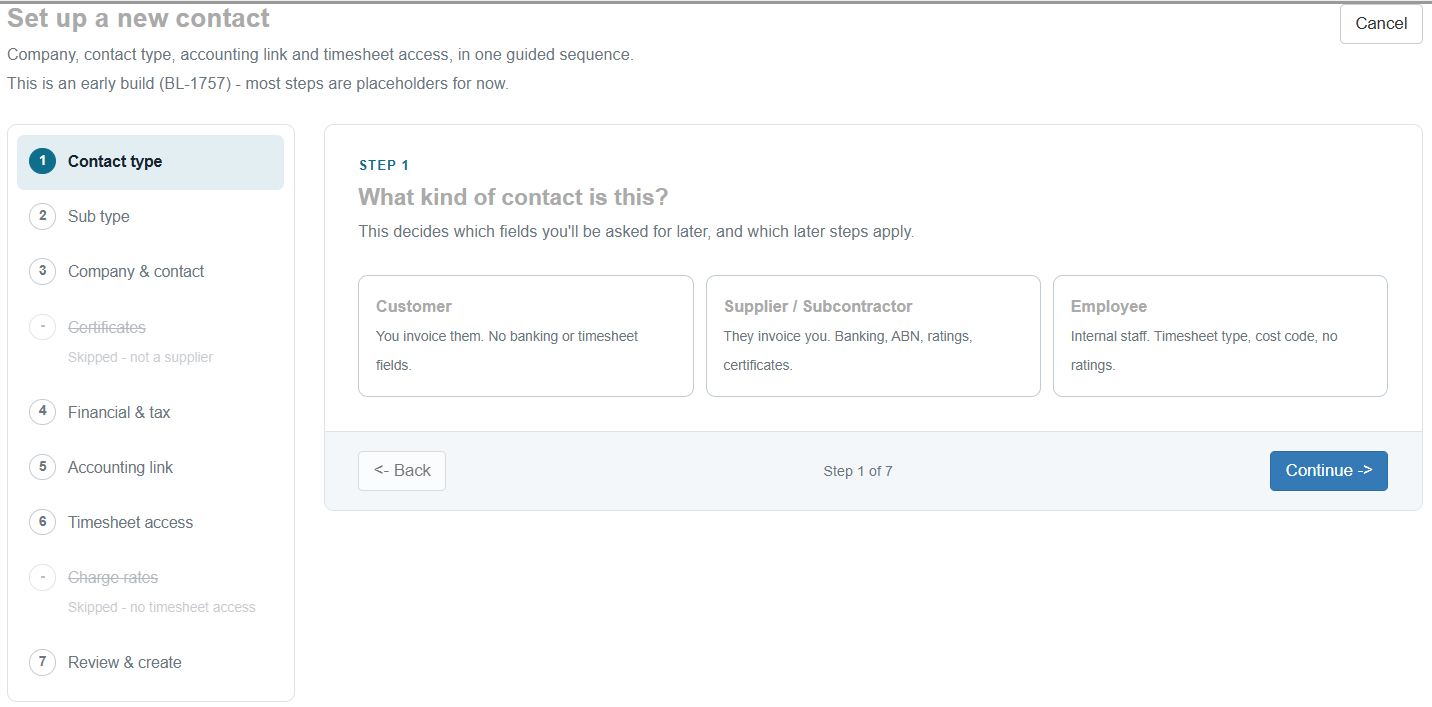
Nothing is saved until you click Create contact on the final step, so you can back out at any point without leaving a half-finished contact in the system.
Allocate A Budget Line To Multiple Purchase Orders And Subcontracts
Previously a budget line could only be linked to one purchase order or subcontract. This made it difficult for users who enter a lump sum budget or adjustment for a package of work and then commit it progressively across several orders as suppliers and subbies are engaged, especially as adjustments can't be split.
A budget line, including a lump sum adjustment line, can now have multiple purchase orders and subcontracts allocated to it, with each one using up part of the budgeted amount. From the job trade, click Allocate... on the budget line, enter the amount to allocate, then create a New PO or link an existing order. You can come back and allocate further orders against the same line until the budget is used up.
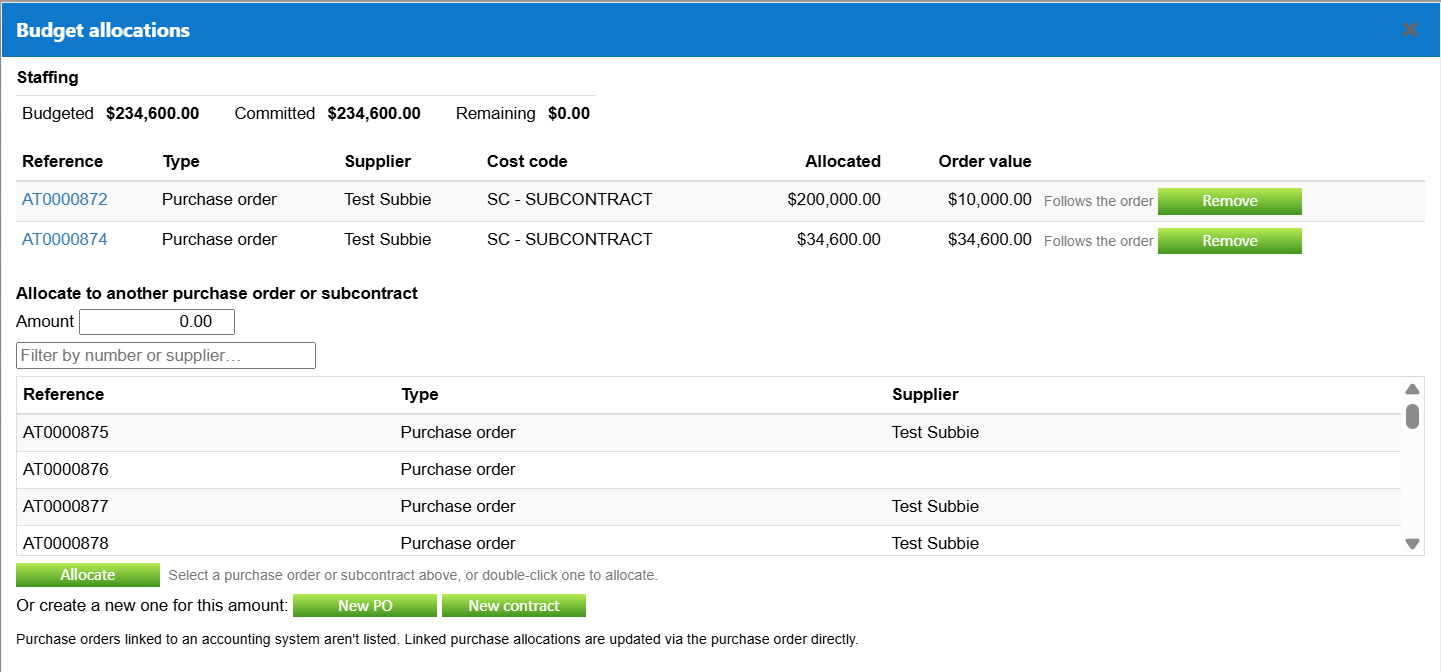
For each budget line you'll now see:
- Budgeted - the budget line amount
- Committed - the total of all orders allocated to the line
- Remaining - budgeted less committed
You can drill into a line to see each order allocated to it, along with its reference, cost code and supplier. Removing an order from a line updates the committed and remaining amounts straight away. Cost and commitment reports show the total committed per line while still letting you see the individual orders behind it.
Existing budget lines that are already linked to a single order are unaffected and continue to work exactly as they do today.
Send Subbie Claim Portal Emails Twice A Month
Until now, Buildlogic could only send the automatic claim portal invitation to subcontractors on one day each month. For sites that run two claim cycles a month, you can now choose a second day.
A Buildlogic admin user can navigate to System > Settings > Contracts tab, where a new dropdown labelled "Optional second day of month to send contractor claim portal emails" sits next to the existing default day. Pick any day from the 1st to the 28th, or leave it on (None) to keep sending once a month.

- Once saved, the new schedule is applied to every subcontractor that has automatic claim emails turned on.
- The two days must be different - you'll see an error message if the same day is picked in both dropdowns.
- Days 29 to 31 aren't available, so the emails go out every month, including February.
- The claim invite note on the contact screen and the message on the contract claims grid now show both days, for example "invited to claim via portal on 5th and 20th day of each month".
Report Editor Speed And Save Improvements
The Report Editor, used to edit Word report templates, should now open noticeably faster. Some of the work behind the scenes was being done twice every time the editor loaded, which has now been removed.
- Faster loading - the field list and template now only load once when the editor opens.
- Reliable saving - You'll now only see "Template updated successfully" message when the save has worked, otherwise you'll get an error so you know to try again.
- Field list sorted alphabetically - small QoL change to make it easier to find the field you want to insert.
Coming Soon - Buildlogic AI Assistant
We're working on a new AI Assistant that lets you ask questions about your jobs, costs and purchases in plain English, and get back a table, a chart or a set of findings from your own live data. No report to build, no filters to set up and no training needed.
For example, you could ask "Who are my top 10 suppliers by purchase spend this year?", then follow up with "Can I have that as a bar chart?" and "Only show cost code MT". The assistant keeps track of the conversation, so each question builds on the last.
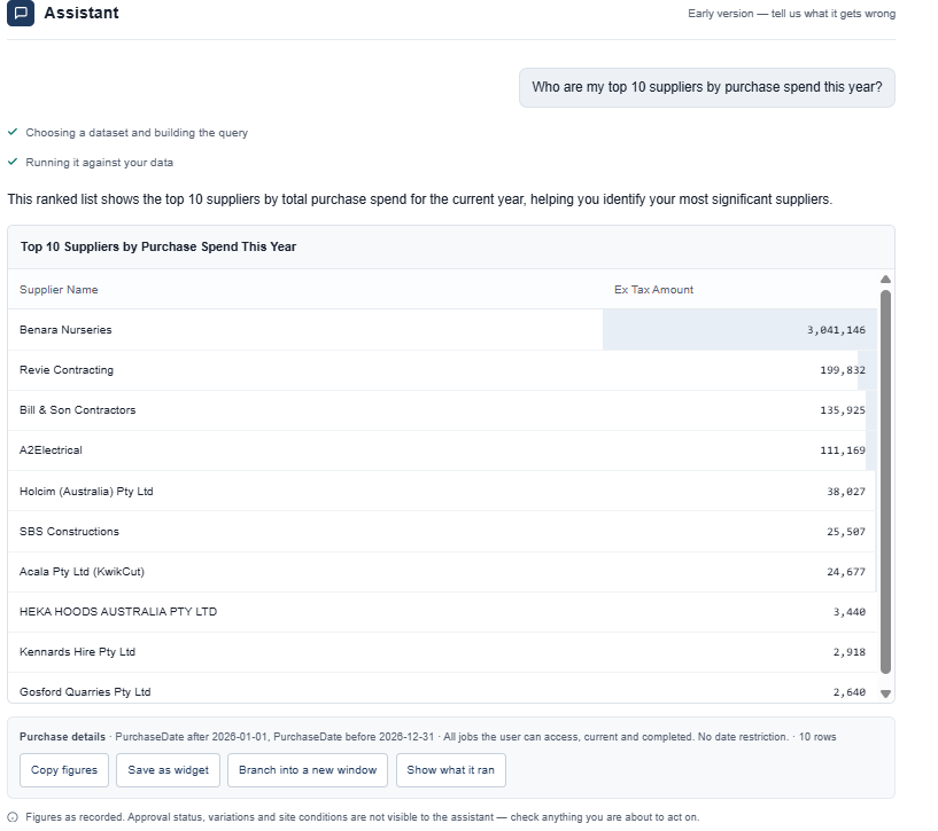
When you get an answer worth keeping, one button saves it as a report widget, so a question you asked once becomes a report you can run whenever you like.
Built so you can trust the numbers
- It shows its work - every answer lists the data it used, the filters it applied and how many rows it read. If nothing comes back, it tells you whether your filter excluded everything or the data simply isn't there.
- It tells you what it can't answer - rather than guessing, it will say when a question can't be answered properly from your data, or answer the part it can and state what's not covered.
- Your data stays yours - the AI never writes database queries and your records are never sent to it. It picks from the same permission-controlled data sources the report builder already uses, and Buildlogic fetches the figures. You'll only ever see data for your organisation and the jobs you have access to.
- Read only - it can't create, edit or delete anything, and nothing you ask is used to train AI models.
Findings
Beyond answering questions, the assistant can also run prepared analyses. The first looks at cost against budget across your jobs - which codes are over, by how much, how much is already committed, and whether the position is getting worse. It also separates cost that has gone over budget from cost recorded against no budget at all, so you can tell a real overrun from a coding gap.
Early access
The AI Assistant will start in early access, turned on for one organisation at a time so we can work with each client as they get started. Once it's on for your organisation, you decide which users have access. If you'd like to be part of the early access group, let us know at support@buildlogic.com.au.
If you have any questions about this release, email us at support@buildlogic.com.au.
Was this article helpful?
That’s Great!
Thank you for your feedback
Sorry! We couldn't be helpful
Thank you for your feedback
Feedback sent
We appreciate your effort and will try to fix the article