Release 22nd October 2026
This release introduces Claim Assessment for subcontractor progress claims, report dashboards, and the ability to merge cost codes and reference codes. RFI emails now go to each recipient separately, supplier invoice numbers can be searched from the purchase index.
Claim Assessment
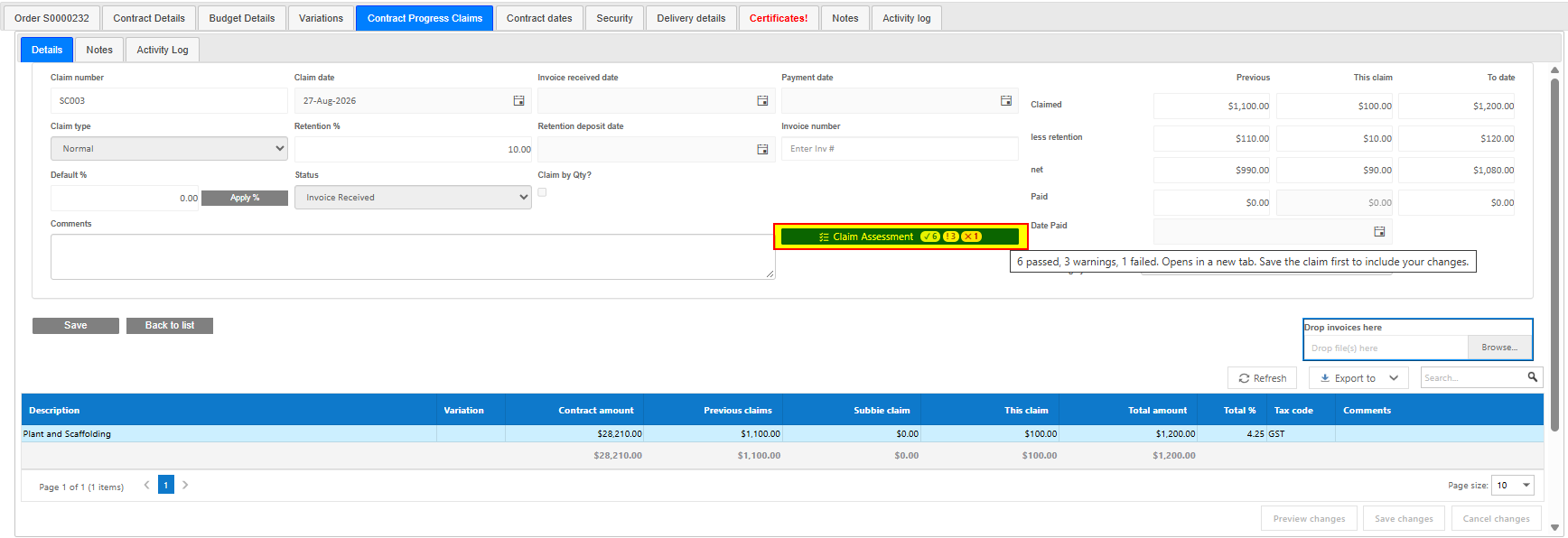
Assessing a subcontractor progress claim often means looking up figures across several screens before you're comfortable approving it. We've added a Claim Assessment button to the Details tab of every contract progress claim, which opens a page that brings those figures together and scores the claim against a set of checks, each rated Pass, Warn or Fail.
Claim Assessment is there to help the person approving the claim. It doesn't block or change your approval process, and a claim can still be approved whatever its result. All checks are worked out from your own Buildlogic data, so they give the same answer every time.
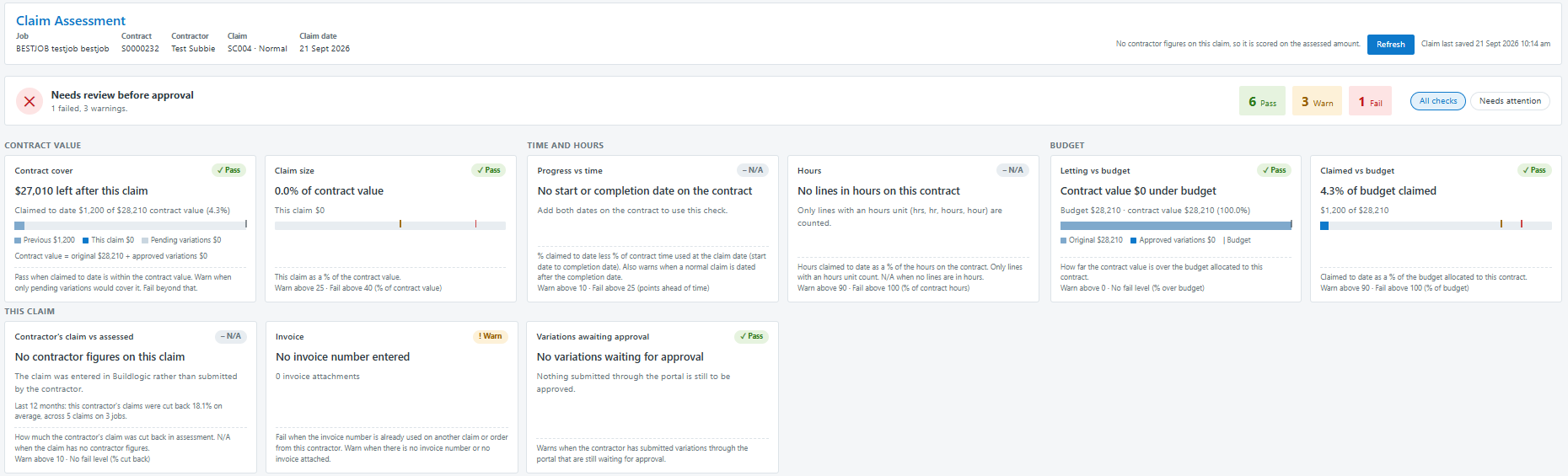
What gets checked
- Contract value - whether claimed to date is within the contract value (including pending variations), and how big this claim is as a % of the contract.
- Time and hours - progress claimed compared with how much of the contract time has passed, claims dated after the completion date, and hours claimed against hours on the contract.
- Budget - whether the contract was let over budget, and claimed to date as a % of the budget allocated to the contract.
- This claim - how much the contractor's claim was cut back in assessment, duplicate or missing invoice numbers, a missing invoice attachment, variations awaiting approval, and lines claimed ahead of the head contract.
- Contractor - the contractor's rejected claims in the last 12 months across all jobs, open and overdue defects on the job, and whether their required insurances are current.
Click a Pass, Warn or Fail tile to filter the checks, or use Needs attention to only see warnings and fails. Where the claim came with the contractor's own figures, the Score on switch lets you score the checks on the contractor's claim instead of the assessed amount, so you can see an over-claim before it's cut back.
The page uses the claim as last saved, so save any changes on the claim and press Refresh to update it.
At approval
When a claim reaches its final approval step, from the web or mobile app, a snapshot of the assessment is saved and a summary is written to the claim's activity log. On an approved claim, the assessment page shows who approved it and when, and a Today / At approval switch lets you see the assessment as it stood when it was approved.
The Contract Claim Approval Completed email now includes the assessment result, lists any checks that warned or failed, and links to the Claim Assessment page.
Setting your own levels
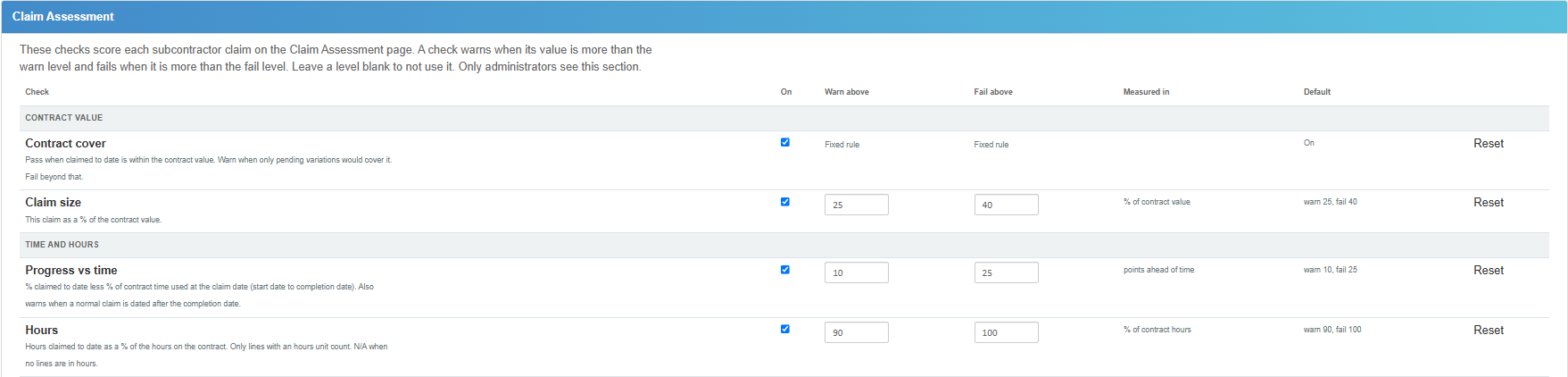
Every company starts on our default levels. A Buildlogic admin user can navigate to System > Settings > Contracts tab, where a new Claim Assessment panel lets you turn checks on or off and set your own warn and fail levels for each one. Use Reset to go back to the default, then Save.
Merge Cost Codes And Reference Codes
Over time, duplicate and obsolete cost codes and reference codes build up, and until now there was no easy way to tidy them up. Admin users will now see Merge Codes and Merge History buttons on:
The Cost Codes page (System > Accounting system Info > Edit > Cost Codes Tab) https://app.buildlogic.com.au/CostCode
Reference Code page (System > Accounting system Info > Edit > Ref Codes Tab) https://app.buildlogic.com.au/ReferenceCode/Index
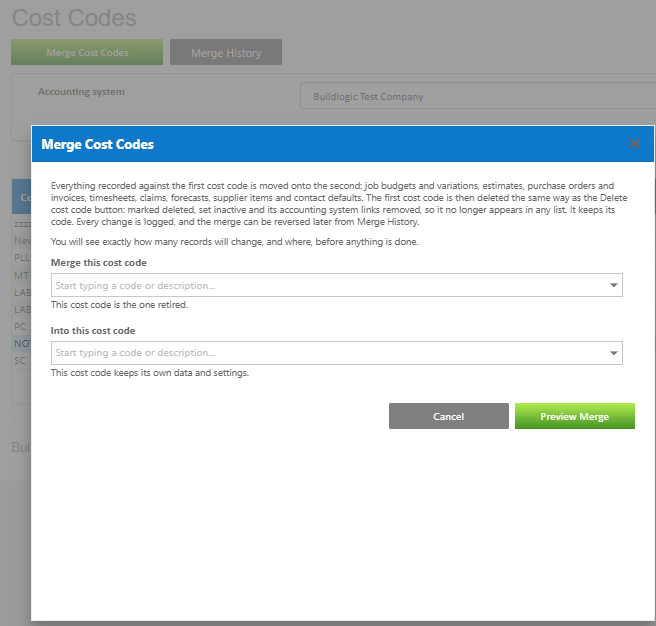
The merge wizard moves everything from one code onto another existing, active code, including budget, estimate, purchase, timesheet, forecast and claim lines and contact defaults, then retires the old code.
- Choose the code to merge and the code to merge it into, then click Preview Merge.
- The preview shows exactly how many records will be moved and where, and how many will be combined with records the target code already has. Nothing has been changed at this point.
- Type the code being merged into the confirmation box and click Merge.
After the merge, the old cost code is set inactive and the old reference code is deleted. Every change is logged, and the log can be downloaded from the result screen or from Merge History. If a merge was a mistake, it can be undone with the Reverse button in Merge History, which also shows a preview first.
Things to know
- Merging doesn't send anything to your accounting system. Purchase lines that have already been sent will be updated in Buildlogic only.
- Where both codes have a forecast line for the same job, the amounts are added together and the target keeps its own comments and margins.
- Only detail reference codes can be merged, not header codes.
- Other users will see the updated code lists the next time they sign in.
We've also improved the cost code Delete button. Deleting a cost code now sets it inactive and removes its accounting system links rather than removing it completely. This is much quicker, and works even when the code has been used on transactions. Tick Show inactive cost codes to see and restore them. We've also fixed deleted reference codes reappearing in the list after an edit, and an error when deleting reference codes with long descriptions.
RFI Emails Sent To Each Recipient
Previously, an RFI email went to the To contact with the distribution list copied in, and everyone replied through the same link. This meant every reply showed as coming from the To contact.
Each recipient now gets their own email with their own response link, and nobody is copied in. Replies are recorded against the person who actually made them, and each person can only edit their own reply. The list of who else received the RFI is shown at the bottom of each email under "Also sent to:".
- Replies in the RFI Responses list now show the person's name where their email address belongs to one of your contacts.
- If one address can't be sent to, the rest of the list still receives the RFI, and you'll see who was and wasn't sent it. Each email sent is listed in the RFI's activity log.
- If you use your own RFI email template, add [DistributionList] to control where the other recipients are listed.
- Links sent before this release still work, and older replies will still show against the To contact.
As one email now goes to each recipient, sites with long distribution lists will send more emails through their mail account than before.
Search Supplier Invoice Numbers From The Purchase Index
Since purchases can now hold more than one invoice, supplier invoice numbers are stored against each invoice rather than the purchase itself. The purchase index search now also looks through the supplier invoice numbers of every invoice on a purchase, and returns the purchase they belong to.
Partial searches work the same way as the other search fields, invoices are found whether or not they've been sent to the accounting system, and older purchases can still be found by their invoice number. A purchase only appears once in the results, even if more than one of its invoices match.
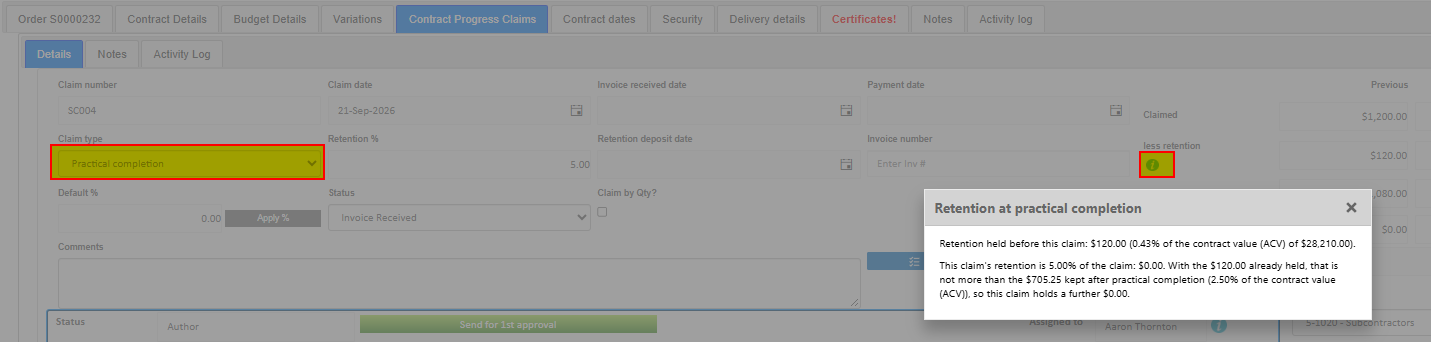
Retention outline - "How was this retention figure calculated?"
What's new
Practical completion (PC) and final completion (FC) claims now explain their retention figure.
Click the info icon beside "less retention" on the progress claim summary (right hand side of the claim screen),
The system will explain step by step and with that claim's own figures, how the retention released (or held) on the claim was worked out.
Where to find it
- Head contract claims: Job › Progress Claims › open a claim › Details tab.
- Subcontract claims: Contract › Contract Progress Claims › open a claim › Details tab.
- The icon shows only when the claim type is Practical completion or Final completion, and appears as soon as the claim type is changed.
If you have any questions about this release, email us at support@buildlogic.com.au.
Was this article helpful?
That’s Great!
Thank you for your feedback
Sorry! We couldn't be helpful
Thank you for your feedback
Feedback sent
We appreciate your effort and will try to fix the article