Release 3rd November 2026
This release introduces scheduled reports, a quick way to find invoices and claims that haven't been sent to your accounting system, and the ability to ask site for a progress check from Claim Assessment. Grid layouts now save automatically, documents can be dragged straight onto an RFI, and $0 claim stage lines now show as headers on screen.
Scheduled Reports
Admin users can now have Buildlogic email Excel reports automatically, daily, weekly or monthly, at a time they choose. Set the schedule up once and the report lands in each recipient's inbox, with no one having to log in, pick jobs and click Run. A Monday morning cost report for each project manager, a month end WIP report for the directors, or a weekly invoice list for accounts are all good examples.
Setting up a schedule
Reports that can be scheduled show a clock icon at the right hand end of their row in the Reports List.
- Go to Reports and click a report with a clock icon.
- If the report works on jobs, tick the jobs you want in its filter, as you would to run it.
- Click Schedule this report... next to the View button.
- Choose the jobs, date range, how often and when to send, who to send it to (up to 20 users) and the email subject and message.
- Click Save schedule.
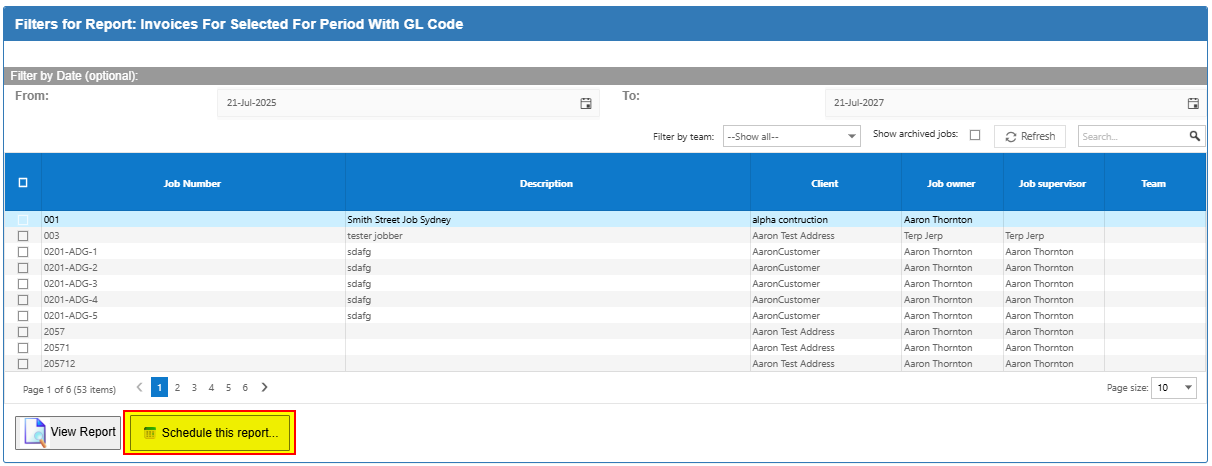
For jobs, you can either use the jobs you ticked, or each recipient's active jobs at the time it's sent, which keeps up as jobs start and finish. Date ranges such as Last week, Last month or Financial year to date are worked out fresh each time, so "Last month" on a report sent on 3 December covers 1 to 30 November.
Managing schedules
Click the Scheduled reports button on the Reports page to see all of your company's schedules, when each was last sent and the result. Select a row and use Edit, Pause / Resume or Delete. Any admin user can change any schedule.

Things to know
- Each person only sees their own jobs - the report is run separately for each recipient using their own access, and emailed to them alone. Nobody receives a job they couldn't open in Buildlogic themselves, even if the schedule includes it.
- Profit reports go to admins only - if a report shows profit figures, only admin users can be chosen as recipients.
- Recipients must be Buildlogic users in your company. Reports can't be sent to outside email addresses or shared inboxes.
- Skipped recipients - anyone who is no longer active, has no email address or can't access any of the jobs is skipped, and everyone else still gets their copy. The Last result column shows what happened.
- Excel reports only for now, and not every Excel report has a clock yet. We check each report before turning scheduling on for it, and more will be added over time. If there's a report you'd like scheduled, let us know.
Find Invoices And Claims Not Sent To Accounts
Purchases with invoices and contracts go to the accounting system one invoice or claim at a time, so the AS ref column on the list was left blank, and the only way to find what hadn't been sent was to open each one and check.
The Purchases and Contracts lists now have a Not sent to accounts button on the toolbar. Click it to show only the purchases and contracts with at least one invoice or claim that hasn't been sent yet. While it's on, the button reads Not sent to accounts (on). Click it again to show everything.

The AS ref column also now shows how many have gone across, for example 5/6 invoices sent on a purchase or 2/3 claims sent on a contract, so you can see progress without opening anything. Purchases sent as a whole keep showing their accounting reference as before.
- The button works on the job, type and date range on screen, so widen the date range to catch older purchases with new invoices. Changing any of these turns the button off.
- Rejected claims aren't counted, as they never go to the accounting system.
Claim Assessment - Ask Site
Claim Assessment now has a Site section with a Claimed ahead of site progress check. When there isn't a site report for the contract, you can click Ask site to send the site supervisor a request for a progress check on the claim, without leaving the assessment screen.
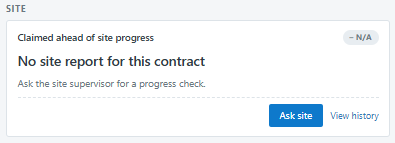
If the site supervisor has notifications turned on in the Buildlogic mobile app, they'll get a push notification on their phone asking for information about the claim. Click View history to see the requests that have been sent.
You can check a jobs site progress answers by hitting the button above the contract list 
Grid Layouts Now Save Automatically
Some grids had a Save button that was easy to miss, and others tried to save when refreshed but didn't always keep your changes. Your page size selection is now saved automatically on grids right across Buildlogic. We added column width save buttons on all grids to save column widths.
- Save button - most grids now have a Save button on the toolbar. After you resize or move a column it turns amber, letting you know the change hasn't been saved yet. Click it to save straight away.
- Reset to default layout - click the arrow next to the Save button and choose Reset to default layout to put the grid back to its original column widths, order and page size. The page will reload, so save any changes first.
- Column resizing - dragging a column border now works the same way across the system as it does on the Jobs list, with a scrollbar when the columns are wider than the page.
Layouts are saved per user, so changing your layout never changes anyone else's. Saved filters on lists such as Purchases, Approvals and Tasks now also stick for users who switch between companies. A few grids will open on their default layout once after this release, including the Job Trades list, Forecast history and AS Feed item purchase detail.
Attach Documents Directly To An RFI
Previously, to attach a document to an RFI you had to add it to the job's Document Register first, then come back and select it in Linked Documents. The RFI Details tab now has a Drag files here or browse area under Linked Documents, so you can drop one or more files straight onto the RFI.
- Each file is added to the job's Document Register, noted as uploaded from the RFI, and linked to the RFI straight away.
- Uploaded documents are attached when you email the RFI. The Email button is disabled until all uploads have finished, so an RFI can't go out missing an attachment.
- A new system setting sets the default document type for RFI uploads. If it isn't set, you'll be asked to pick a document type when uploading.
- Removing a document from the RFI only unlinks it. It stays in the Document Register.
- The upload area is only shown to users with Document Register access.
Claim Stage Header Lines
Many users add $0 claim stage lines as section headers, which print in bold on the Progress Claim template. On screen, though, they looked the same as every other line, making long lists of claim stages hard to follow.
Any claim stage line with a $0 value now shows as a header row, in bold with a light shaded background, on the Job Edit > Claim Stages tab and in the claim stage grid on the head contract progress claim. The This Claim and Total % cells on header lines are read only.
There's nothing to set up, existing jobs pick up the formatting straight away, and totals, claim calculations and the template are unchanged. Small QoL change.
If you have any questions about this release, email us at support@buildlogic.com.au.
Was this article helpful?
That’s Great!
Thank you for your feedback
Sorry! We couldn't be helpful
Thank you for your feedback
Feedback sent
We appreciate your effort and will try to fix the article