Add Recently Used Lines
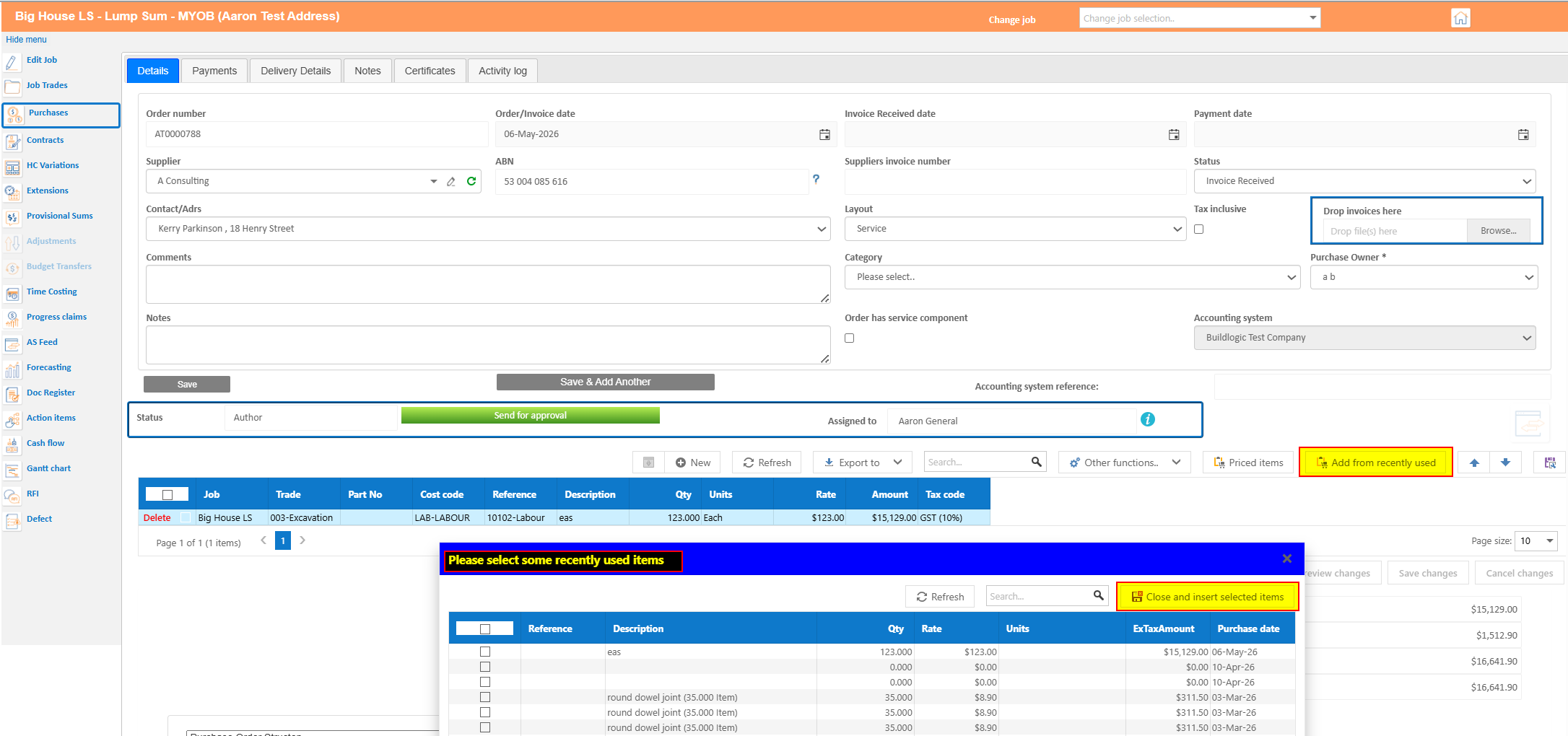
Often users will enter the same lines into multiple different invoices, we've added the ability for a user to select recently used lines in new purchase orders, variation and contracts. This will allow a user to pick up a line they have used in the past and insert it in any new transaction, as they are creating it.
You'll note a button labelled "add from recently used" which will allow you to select and insert past lines on your current order.
Copy User License Functions
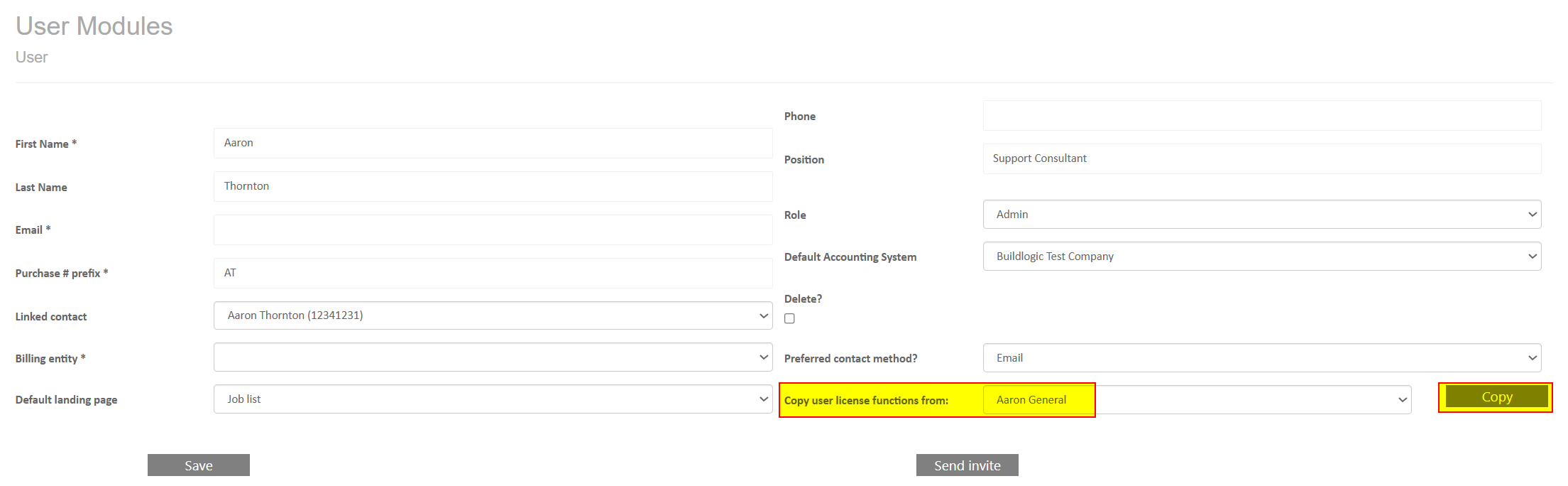
When setting up a new user, an admin user can now copy settings from an existing user, this will allow people to more quickly set up new users when staff come onboard, without having to manually set all the functions and modules, a user can select a user to copy from and hit the copy button (System > User & License > Edit)
Cashflow
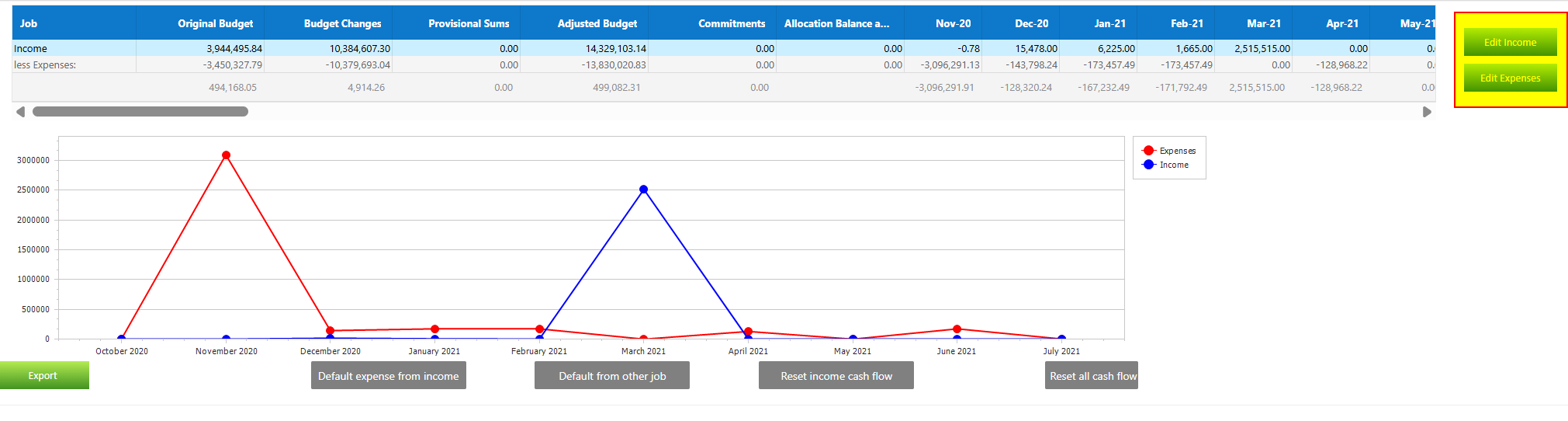
Cashflow layout has been changed to give users a quick summary view before making any required changes,
The new landing page has a summary graph and will summarise the income and expenses separately on this screen,
The user can edit the income or expenses on the right hand side by selecting the corresponding button,
We hope this should give users a better summary of what is happening without having to decipher the entire cashflow manually.
Report Improvements
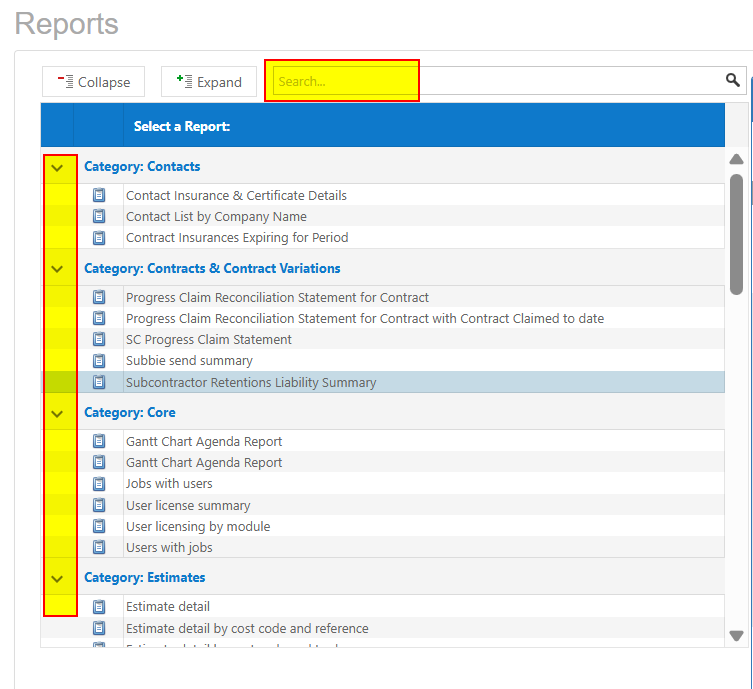
The report list has been updated so that users can see all reports at the same time, rather than having to search through one section at a time, we've also added a search filter to help users who might be looking for a certain word or a report, where they know part of the name.
Teams Filter
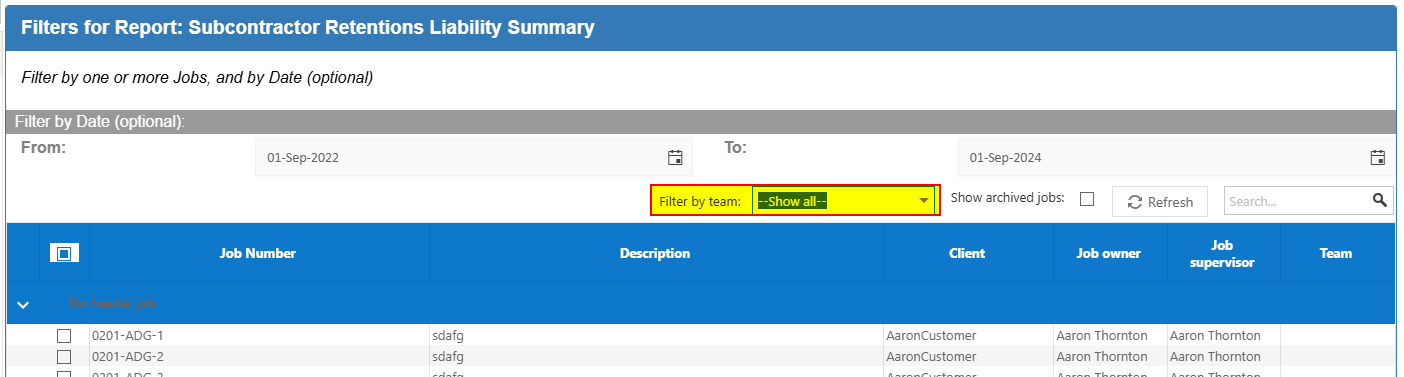
We have added the teams filter to reports with the multi job selection, this should allow greater control over a range of different reports.
Tags Filter
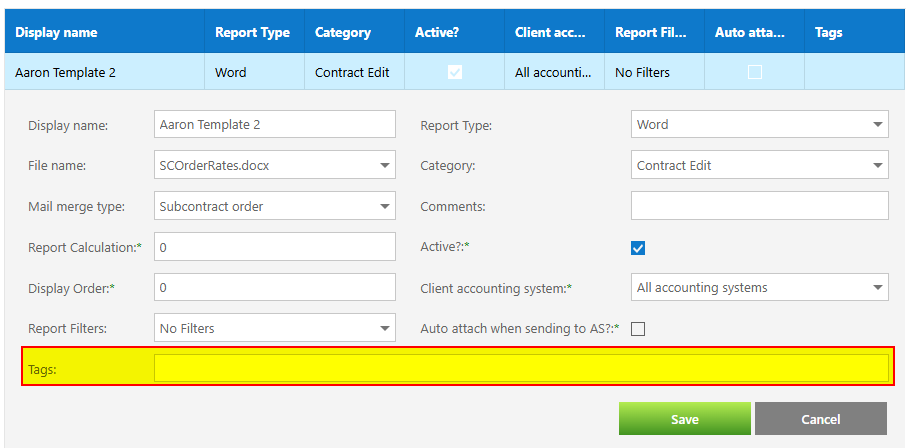
We've added the ability to add tags to reports, we will be tagging each report with the headings available in the associated report, soon users will be able to filter reports by their contents. For example I may want a report that has reference codes, OCV, and forecasted final cost, I'd be able to select these tags and only the reports with these headings would show, allowing me to more quickly find reports that give me what I am looking for.
Centralised AS Sending Improvements
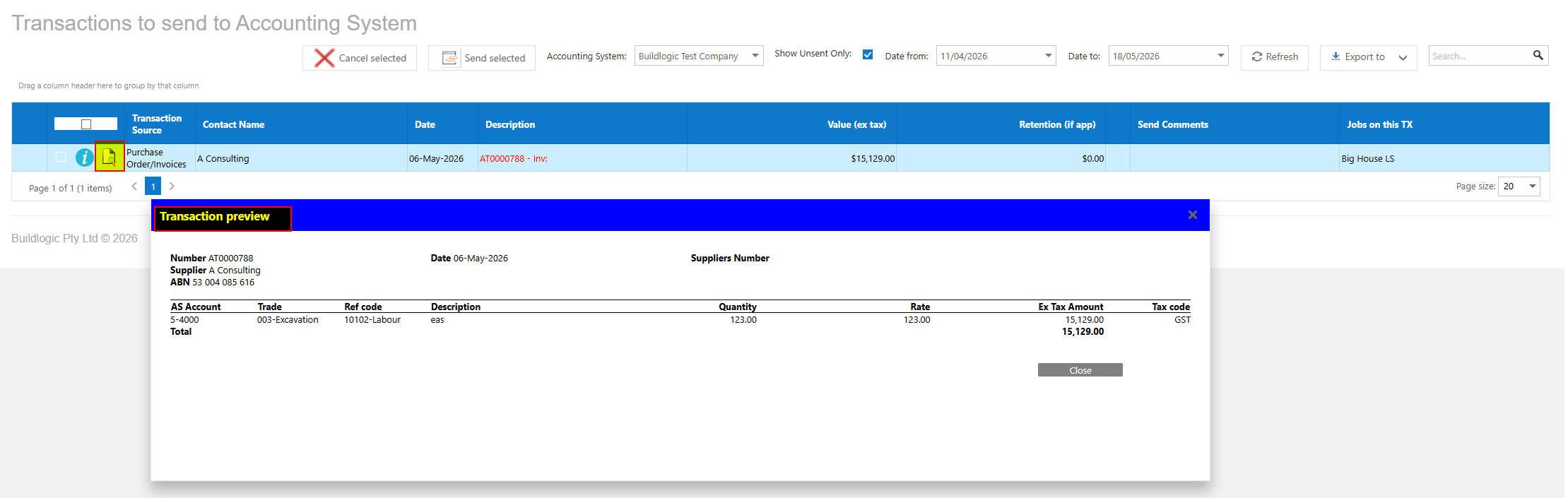
Users can now preview transactions that are in the centralised sending list to go to the accounting system, they can now also add comments when rejecting and the task will go back to the first step of approval with comments in the activity log.
The preview button on the left hand side will allow users to see the contents of the transaction they are approving without having to navigate away from the screen.
Approval Improvements
Approve and Send
Small QoL change to speed things up, we've added the ability to 'approve and send' meaning that on the final step of the approval process, when the user hits the approve button, the system will approve the transaction and in the same step send it to the accounting system.
To enable this a Buildlogic admin user will need to navigate to System > Settings > Others Tab - Send TX to accounting system on Approve 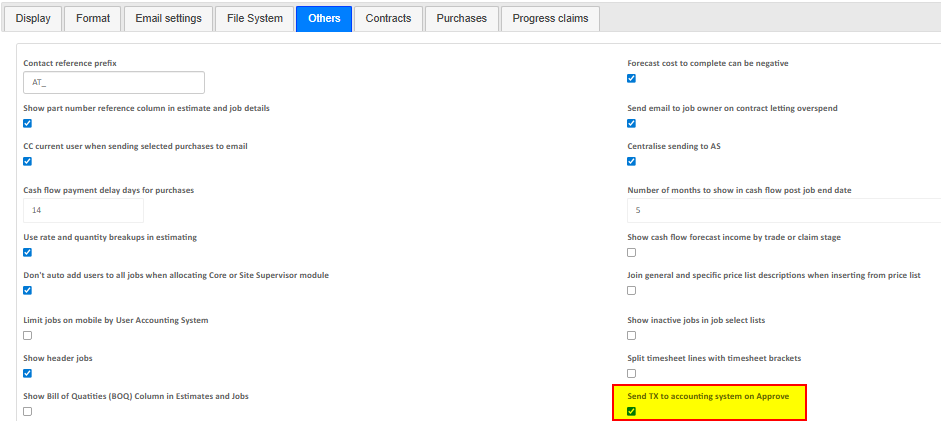
Changes to Approval Function Behaviour
We've added the ability for a user who has no approval process functions assigned to be able to send the transaction into the queue for approval. Prior to this change a user needed to have the ability to approve items, now a user without this approval access can still send transactions to other users who do have the ability to approve.
Changes to Approval Type Assignment
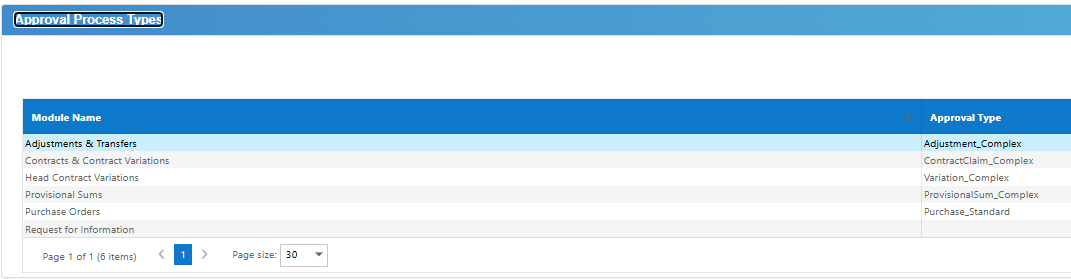
The approval process types in the past needed to be set in each individual user, we've changed this so that setting the approval process in one user will change the entire site. Previously we thought it may be helpful to have different approval process types on an individual user but this has proved to be time consuming rather than helpful.
In system > User & License > Edit > Approval process types
If an admin user changes the approval type on one user, it will change for all users on the site now.
Buildlogic Mobile Check-in
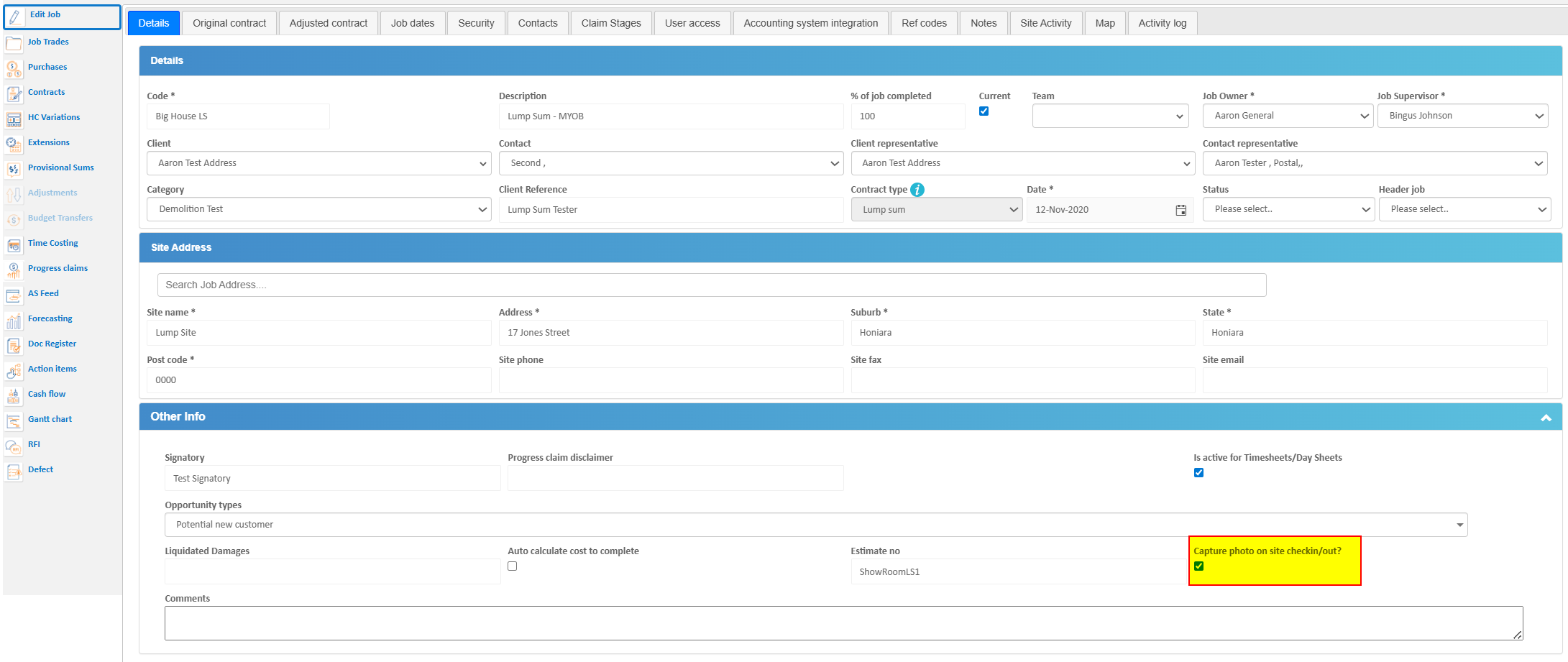
Admin users now have the ability to require a mobile user to take a photo on check in/check out
If a user navigates to the job edit module, there is a check box labelled "Capture photo on site checkin/out?"
If this is enabled, when a mobile user is checking in via QR code, they will also be required to take a photo for that job, which will be displayed in the site activity tab of the job. Check in records with photo's will be indicated by the camera icon on the right hand side, if a user clicks this they will be able to review the in/out photo's.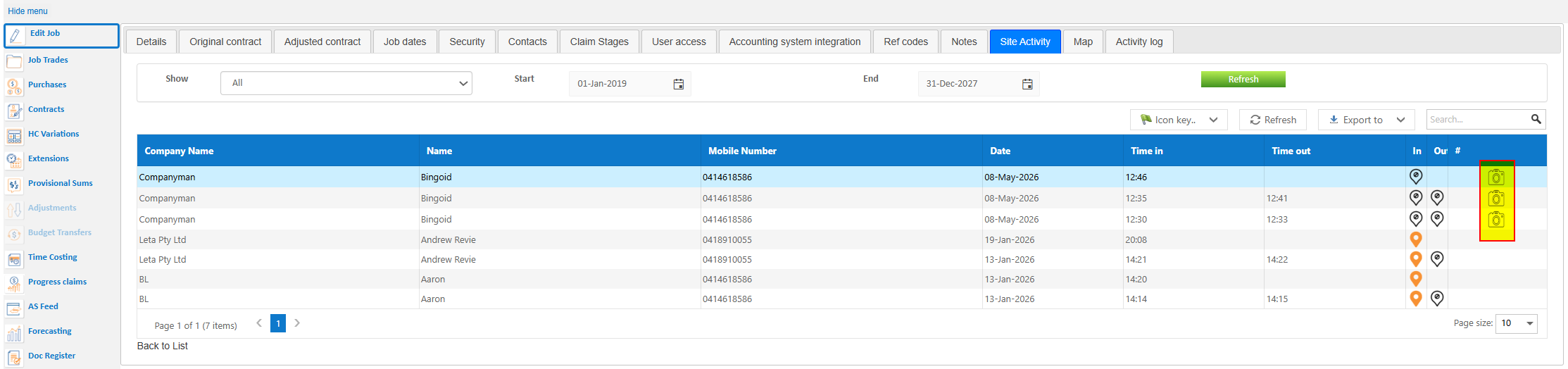
Was this article helpful?
That’s Great!
Thank you for your feedback
Sorry! We couldn't be helpful
Thank you for your feedback
Feedback sent
We appreciate your effort and will try to fix the article