Subcontract Tabs
Order Tab
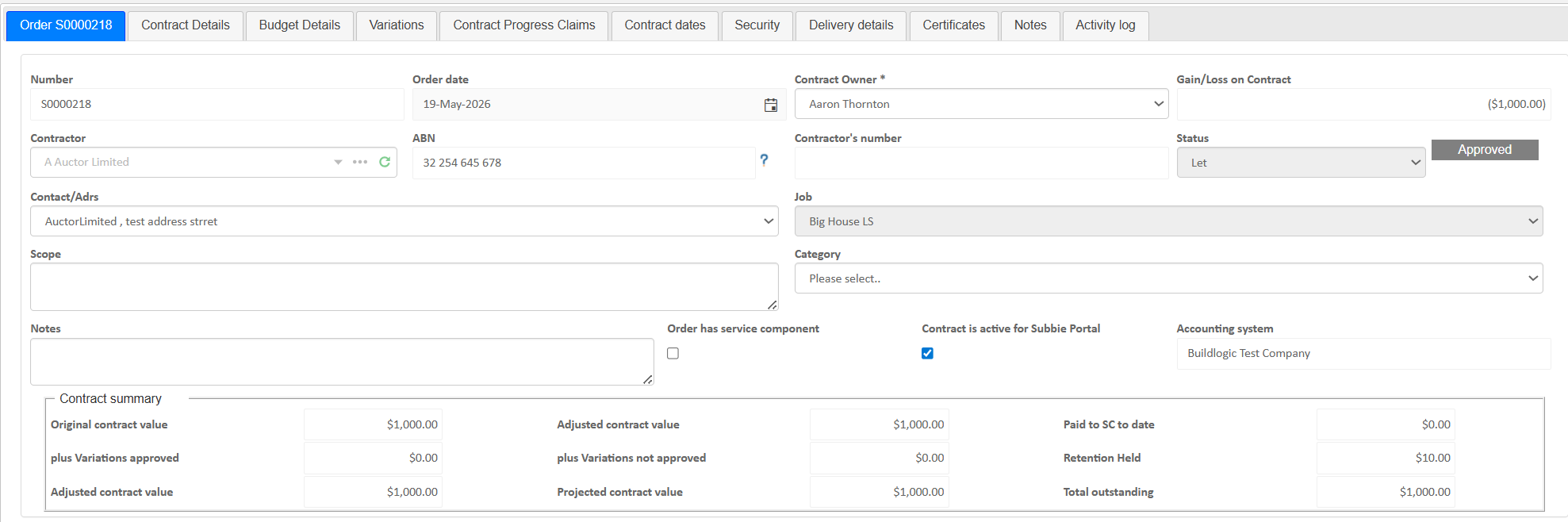
- Order number - Subcontract order number, system generated, cannot be edited.
- Supplier (Contractor) - The subcontractor who will be completing the work.
- Order Date - Subcontract date
- Contract Owner - Buildlogic user designated as the subcontract owner who will be notified when various changes are made.
- Gain/Loss - This field will show the difference between your contract details and your budget details tab, can be misleading if you manually create a subcontract with no budget details, which is possible.
- Contractor's Number - System generated cannot be modified
- Status - Draft or let status, when a subcontract is in draft status any lines added to the contract will be considered 'original' once a contract is let, some fields become locked and any new lines added after letting will be listed as 'variation' line types.
- Scope/Notes - Internal/external notes fields, can be entered onto templates for clients or kept private, depends how you set the system up.
- Category - A custom list same as the category field elsewhere in the software but this time for subcontracts
- Active for Subbie Portal - If a site is using the subbie portal for their subbies to submit claims, this check box will show/hide the individual contract from the subbies list.
- Accounting system - shows which accounting system the subcontract is linked to, cannot be changed from here just an indicator. The accounting system is picked up when the contract is opened, so if your job is linked or set to the wrong accounting system the subcontract will choose the wrong AS as well.
- Contract Value Summary - A summary of contract values for quick overview
Contract Details Tab & Budget Details Tab
The Budget Details tab is like a holding area for the budget of a subcontract, the budget details tab is an internal record that doesn't end up on any documentation. The budget details tab vs the contract details tab is what will give a user the "gain/loss" for the subcontract.
The reason for the two separate tabs is simple, generally a jobs budget is built around making it easy for the client to read and understand, which might not explain things properly for a subbie. To make sure both sides are presented something they understand we have the two separate tabs.
A user would assign the budget to a contract, if the budget details are good enough to pass on to the subcontractor, the user can hit the copy from budget button and this will just copy over the lines directly from the budget details tab, into the contract details tab.
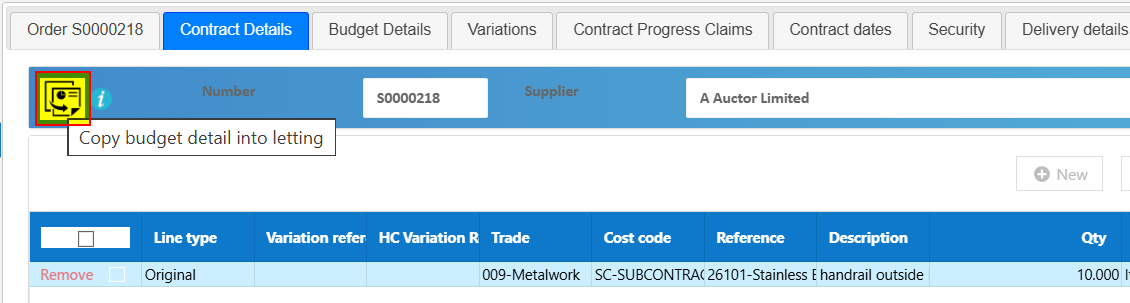
If your job budget is set up in a way that wouldn't make sense to your subcontractor, a user can assign the budget to the subcontract and leave it in the budget details tab, this will assign the budget to the subcontract as required. Then the user can build the subcontract manually in the contract details tab, by hitting the +new button to add one or many new lines as they need with custom descriptions and amounts.

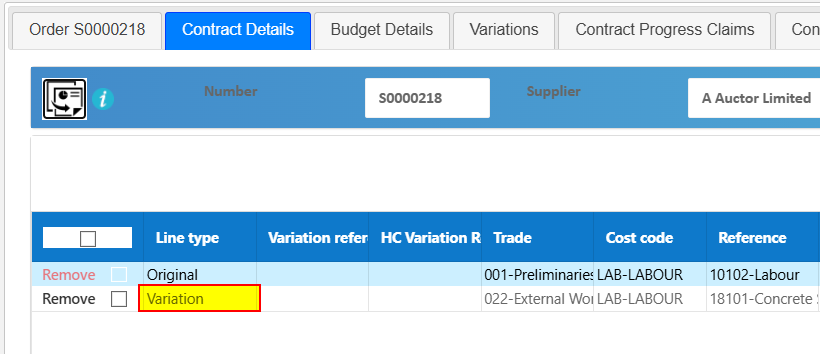
You'll note that the +new button goes away once the contract is "let" as at this point the contract is considered to be signed and agreed upon, any lines added after the contract is let will show as and be considered by the system as variation lines. You can check what type of line something is by the Line Type field. A user can continue to add as many variation lines as needed throughout the contract duration.
When adding lines to a subcontract same as many other places in the software you have some QOL options such as inserting from the price list, adding lines from recently used lines and arrows to change the ordering of lines, again these will disappear once a contract is let.

Variations Tab
- Create and track variation orders (VOs)
- Adjust subcontract value
- Approve or reject changes
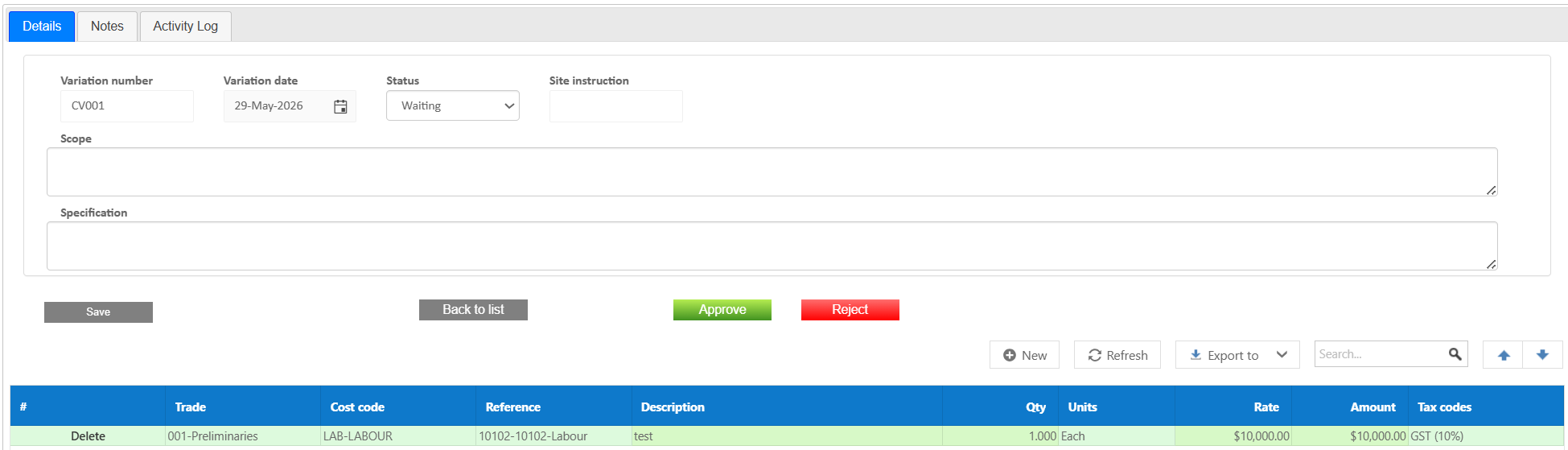
When you create a new subcontract variation you will notice various options, a variation will not be part of the subcontract until it is approved, it can sit in waiting while awaiting approval or if no approval is required it can be approved immediately.
Contract Progress Claims Tab (Payments)
Contract progress claims will automatically calculate any retention based on the settings in the security tab
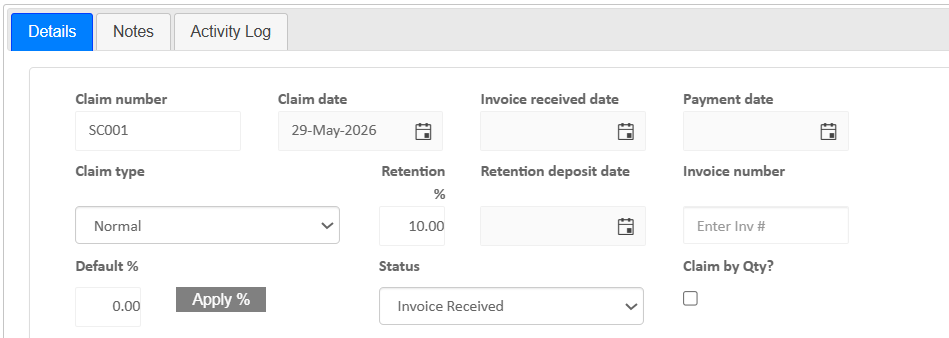
- Claim Number - System generated cannot be changed
- Claim Date - select any claim date for historical records
- Invoice Received Date - This is the date the invoice was actually received, allowing a user to properly track when a payment is due by law
- Payment Date - Payment date of the claim can be left blank if not applicable
- Claim Type - This field is used to differentiate between a normal claim, a practical completion and final completion claim, allowing a user to have control over returning retention.
- Retention - This is just an indicator field that shows the retention amount from the security tab, for quick reference.
- Retention Deposit Date - If you'd like to keep track of this date you can, otherwise it can be left blank.
- Invoice Number - Invoice reference number field
- Status - Order or invoice received, similar to purchase orders a user can indicate whether or not an invoice has been received yet, default status can be set in System Settings by a Buildlogic Admin user. (Contracts tab).
- Default % - A user can enter a percentage of a claim they want to claim and hit the "Apply %" button to claim that percentage on each line.
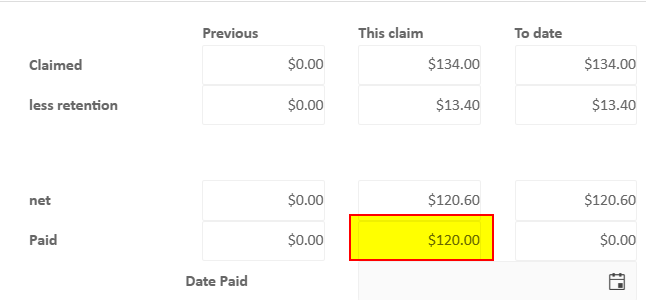
On the right hand side when creating a claim you'll notice the claim summary, this shows the values of this claim, along with previous claims and to date figures, it also shows paid amounts and if your claim isn't going to be linked to an accounting system you can manually enter paid amounts into the 'this claim' 'paid' box.
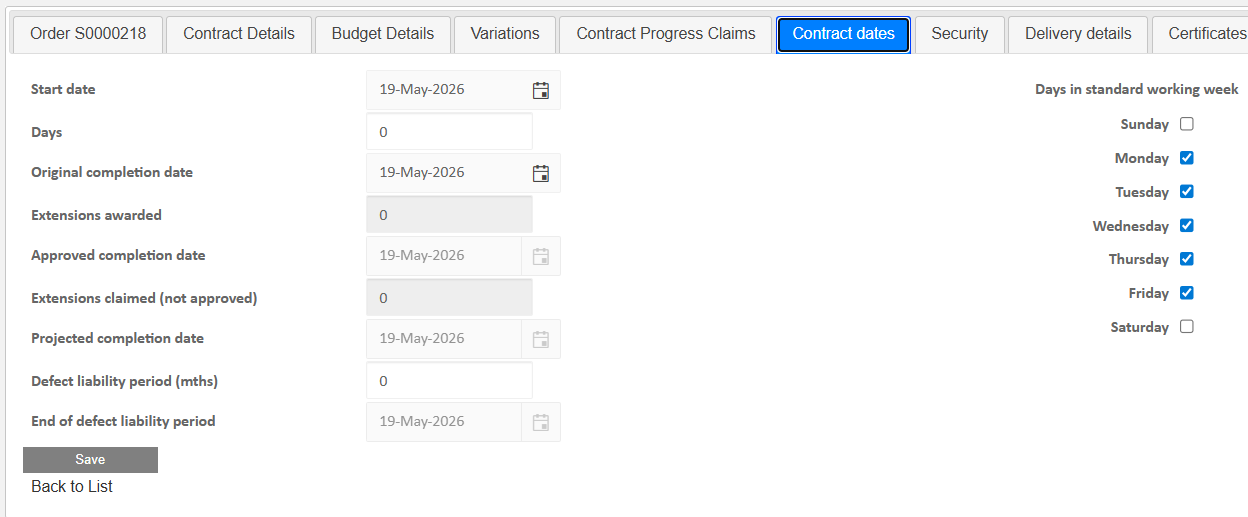
Contract Dates Tab
- Start and finish dates
- Key milestones
- Contract duration tracking
- Defect liability period
- Days In Standard Working Week - These are set at a job level and will default this way for subcontracts, if you have a particular subcontract where you might be working weekends for example, you can tick Sat/Sun and the dates will work themselves out so you'll get a more accurate start/finish. Customisable working days based on needs.
Security (Retention) Tab
- Retention percentages
- Retention amounts held
- Release conditions
- Type of Security - This is where a user can choose to track retention, bank guarantee or no security.
P.S If you've held retention already and then change the setting to no security, the system will ignore retention going forward it will not automatically return the retention that is held. To return any mistaken retention set security to retention and create a practical completion claim type. - Retention Percentage up to Practical Completion - This is the amount of retention that will be held as a percentage of each claim, 10 = 10% of each individual claim will be held as retention.
- Maximum Retention of Contract Value - This is the percentage of the contract that will be held as retention, 5% = 5% of the contract value will be held as retention, this is the "Retention cap"
- Retention percentage from Practical Completion - This is the percentage of retention that will be held when creating a practical completion claim. It's easy to get confused here when you create a PC claim that doesn't return half of the held retention. It shouldn't always be returning half, in some instances you may not have hit the cap for the subcontract for example.
It's more about how much you're holding from practical completion rather than how much is being returned. 2.5% will aim to hold 2.5% of the contract value as retention when creating a practical completion claim. - Based On - This controls whether retention is calculated on Adjusted contract value or original contract value.
- OCV
- ACV
- OCV + Approved non PS Variations
- OCV + Approved PS variations
- Revised Contract Value - Includes budget adjustments

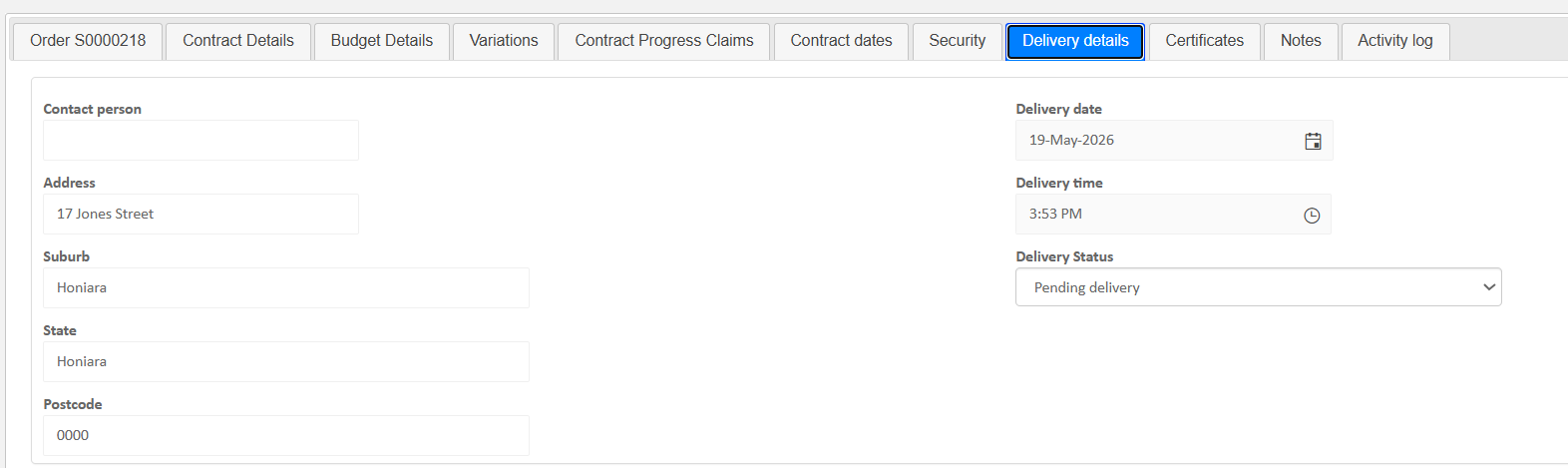
Delivery Details Tab
- Delivery Contact
- Delivery locations
- Instructions for site delivery
- Contact information
- Delivery date and time
- Delivery Status
Certificates Tab
- Insurance certificates
- Licences and compliance records
- Expiry tracking

If a certificate is compulsory a subcontract claim will not be able to be created if the required certificates are not current
If a certificate is mandatory and it is out of date, the certificates tab will have red text
Download any existing certificates by clicking the PDF icon on the right hand side
Manage certificates from inside the contact card of the supplier
Notes Tab
- Internal notes
- Instructions or clarifications
- Communication history
- Attachments
Activity Log Tab
- User actions and changes
- Status updates
- Timestamps of all activity
Tips
- Use the Order tab to build and review contract scope
- Link Budget Details to maintain cost control
- Track all changes through the Variations tab
- Regularly review progress claims for accuracy
- Maintain certificates to ensure subcontractor compliance
- Use Activity Log for audit and dispute resolution
Was this article helpful?
That’s Great!
Thank you for your feedback
Sorry! We couldn't be helpful
Thank you for your feedback
Feedback sent
We appreciate your effort and will try to fix the article